> ## Documentation Index
> Fetch the complete documentation index at: https://docs.ghostable.dev/llms.txt
> Use this file to discover all available pages before exploring further.
# Environments & Variables
> Browse variables, edit values, inspect history, and import or export env files from the desktop app.
This guide covers the macOS UI; the linked Fundamentals page explains what environments mean
across clients.
## Open an Environment
From a Project window, use the **Environments** section to browse available environments and open
one in its own window.
## Variables View
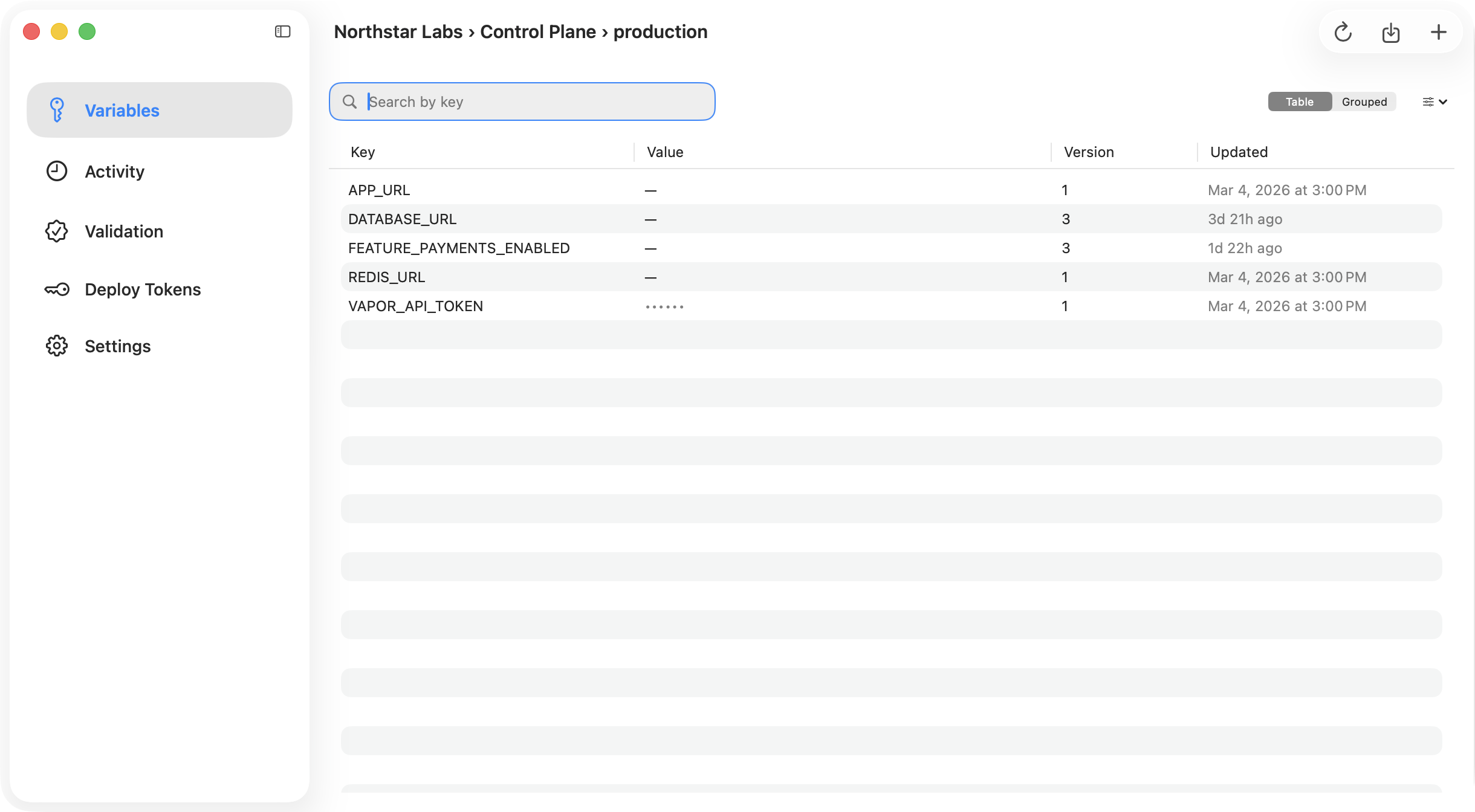
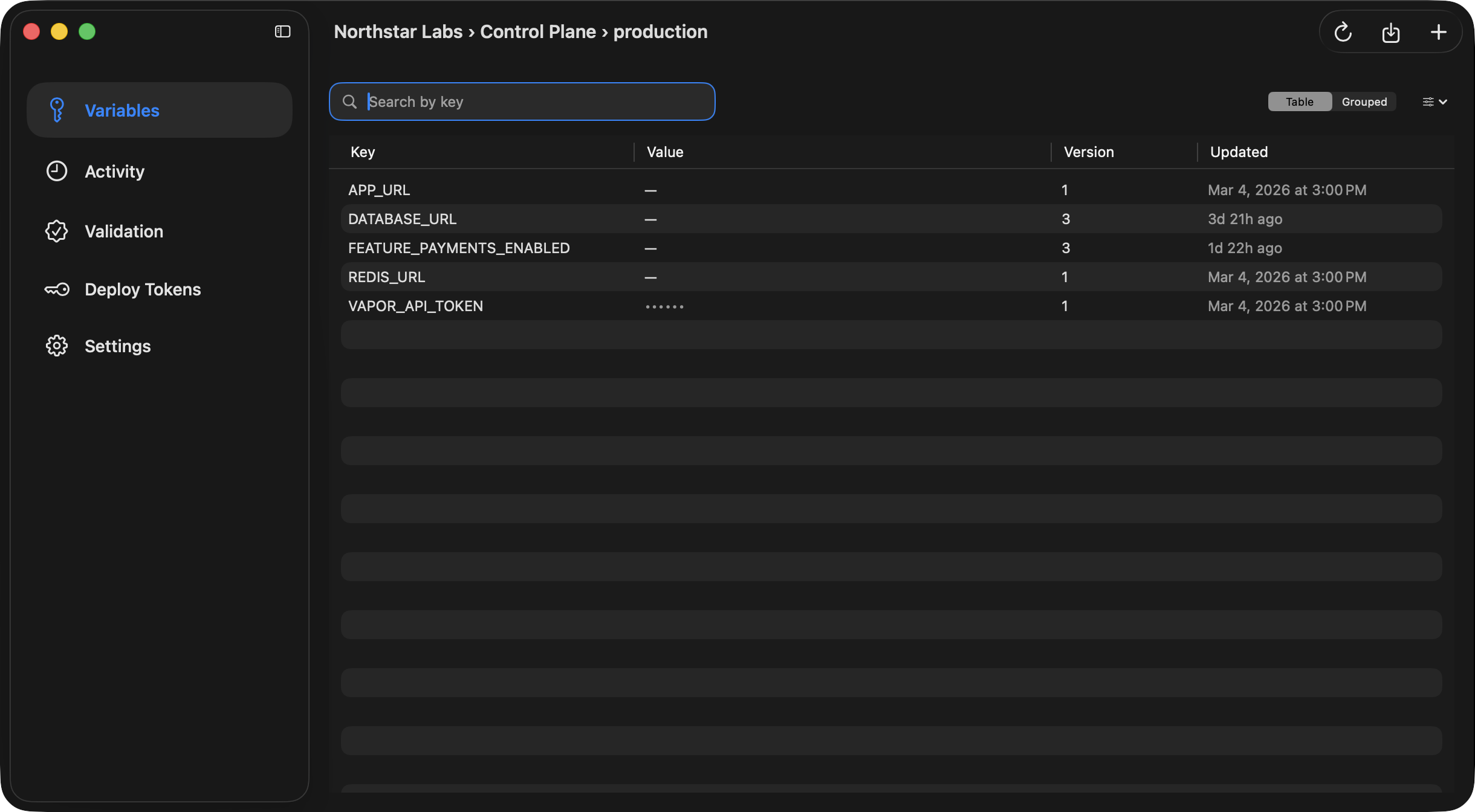
The Variables section is the main workspace for environment data. It supports:
* search by variable key,
* table and grouped layouts,
* hiding disabled variables,
* creating new variables,
* disabling or deleting existing variables,
* importing a local `.env` file,
* exporting the environment back to a local file.
{/* ghostable:screenshot-output desktop-environments-variables-main:start */}
 ## Variable Detail Pane
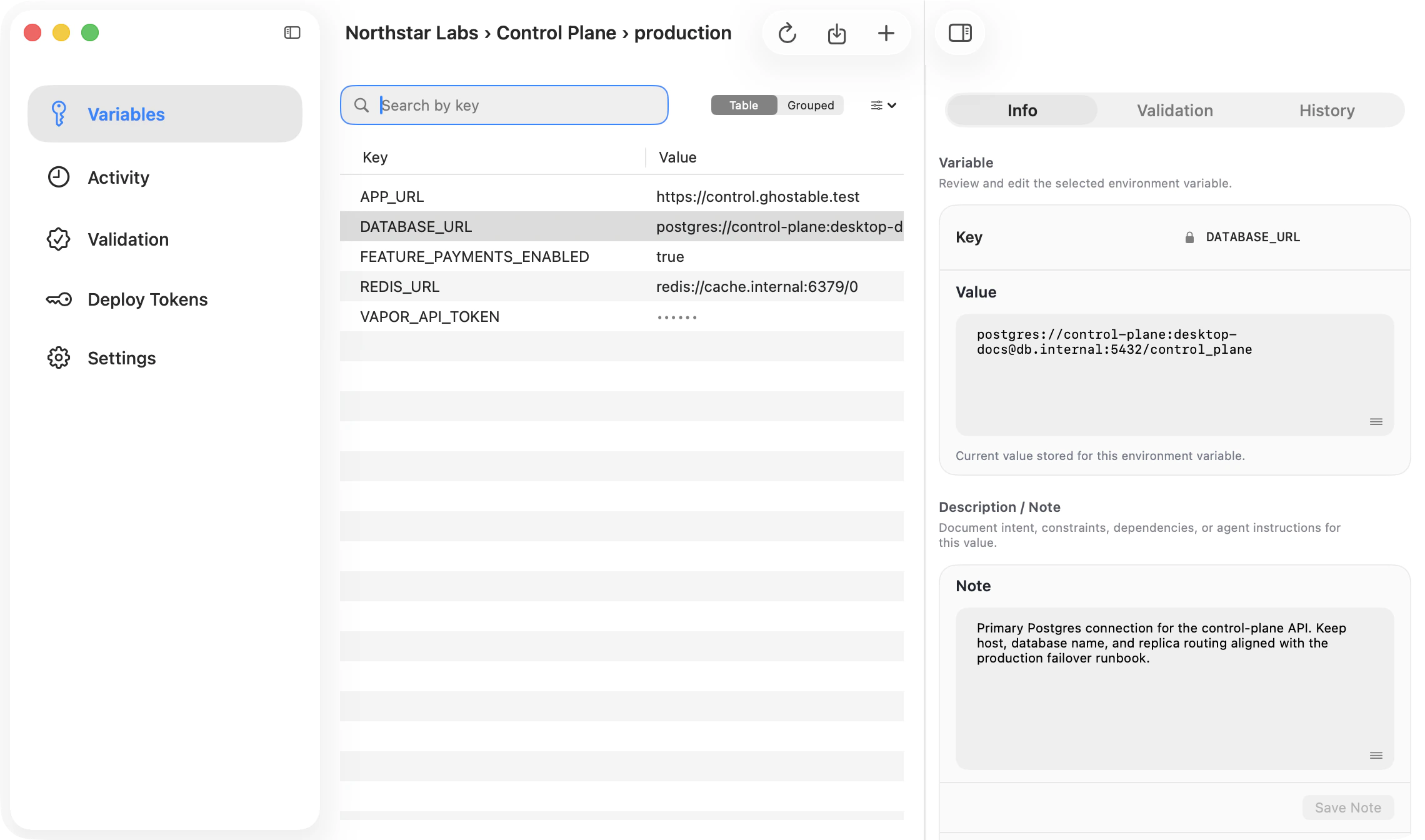
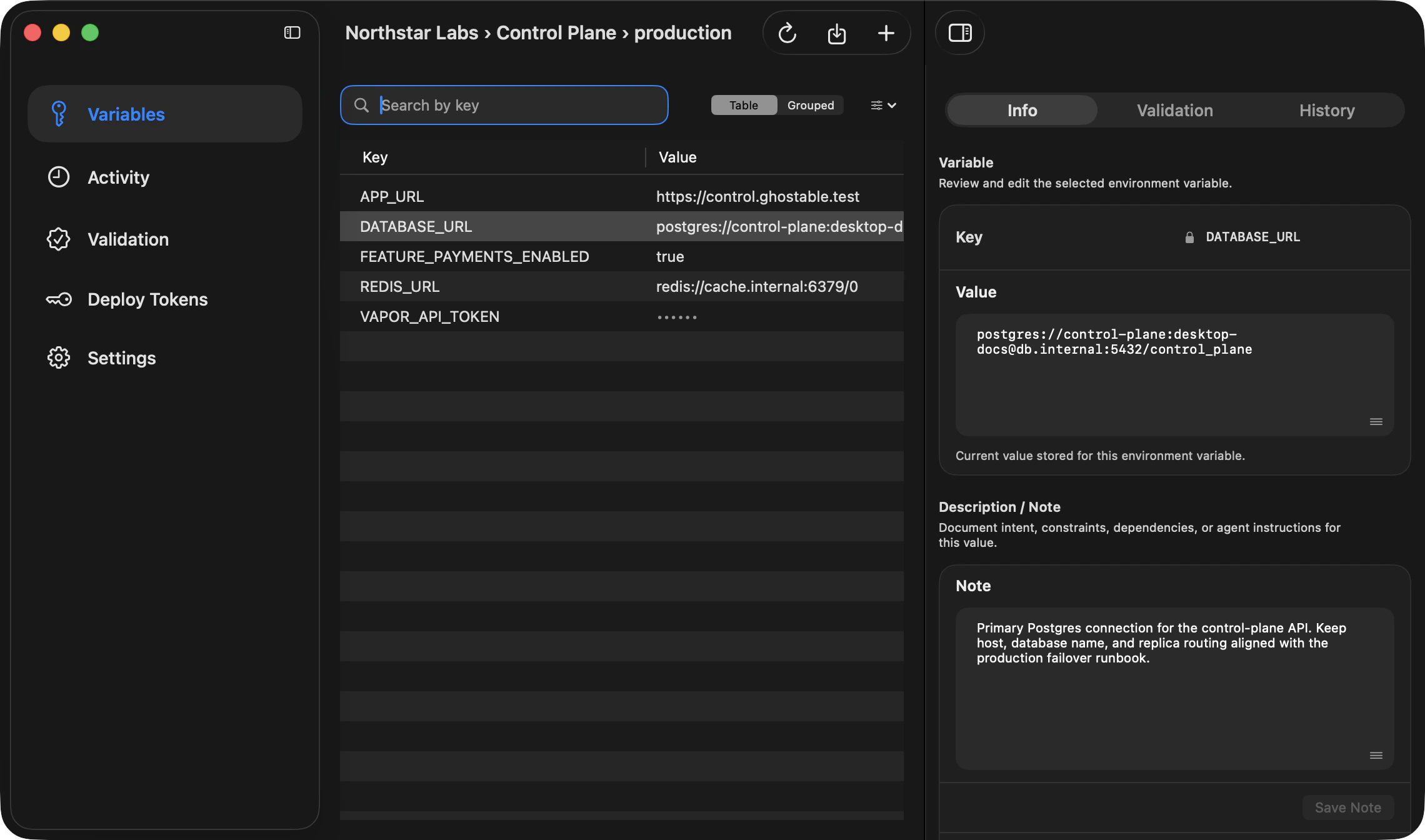
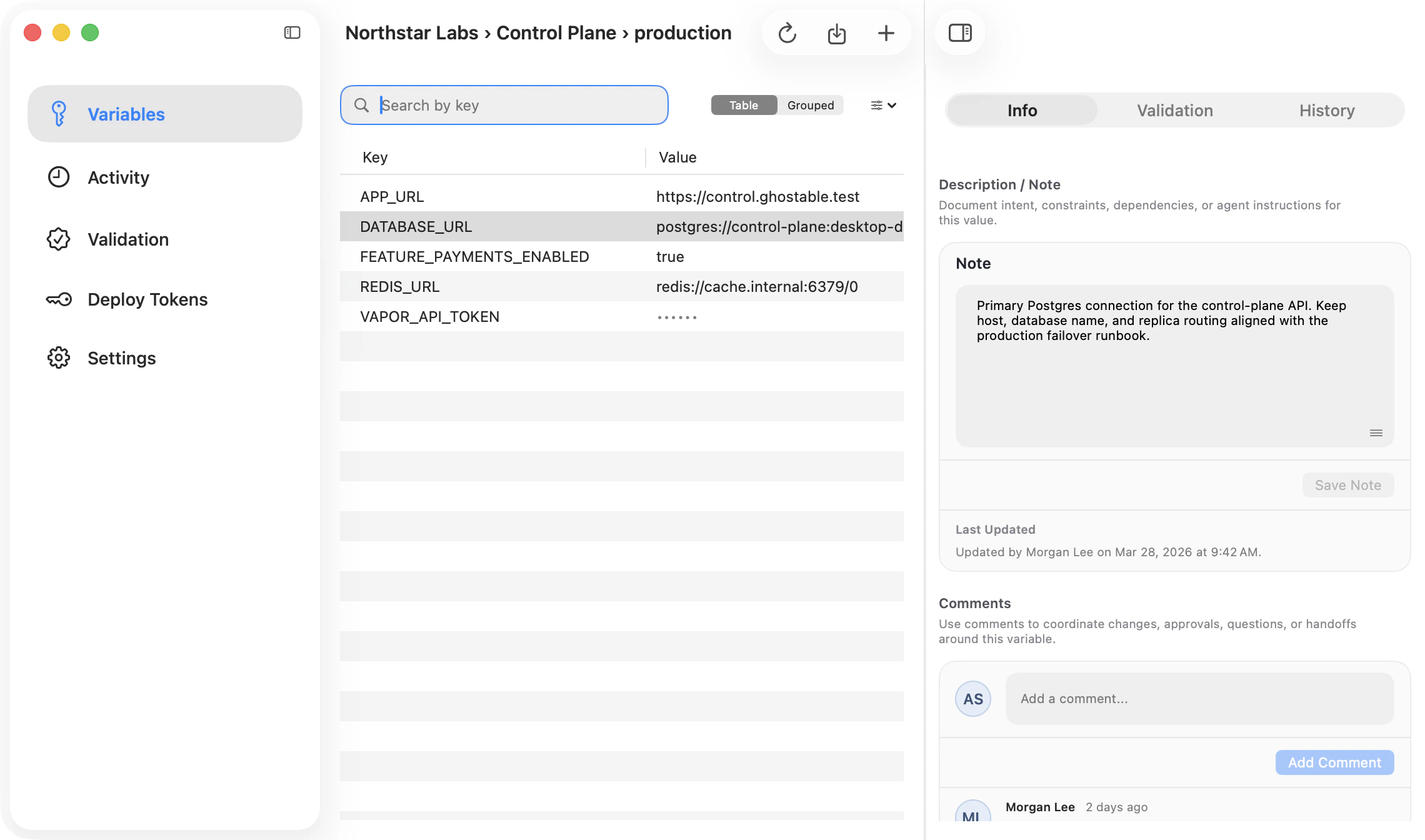
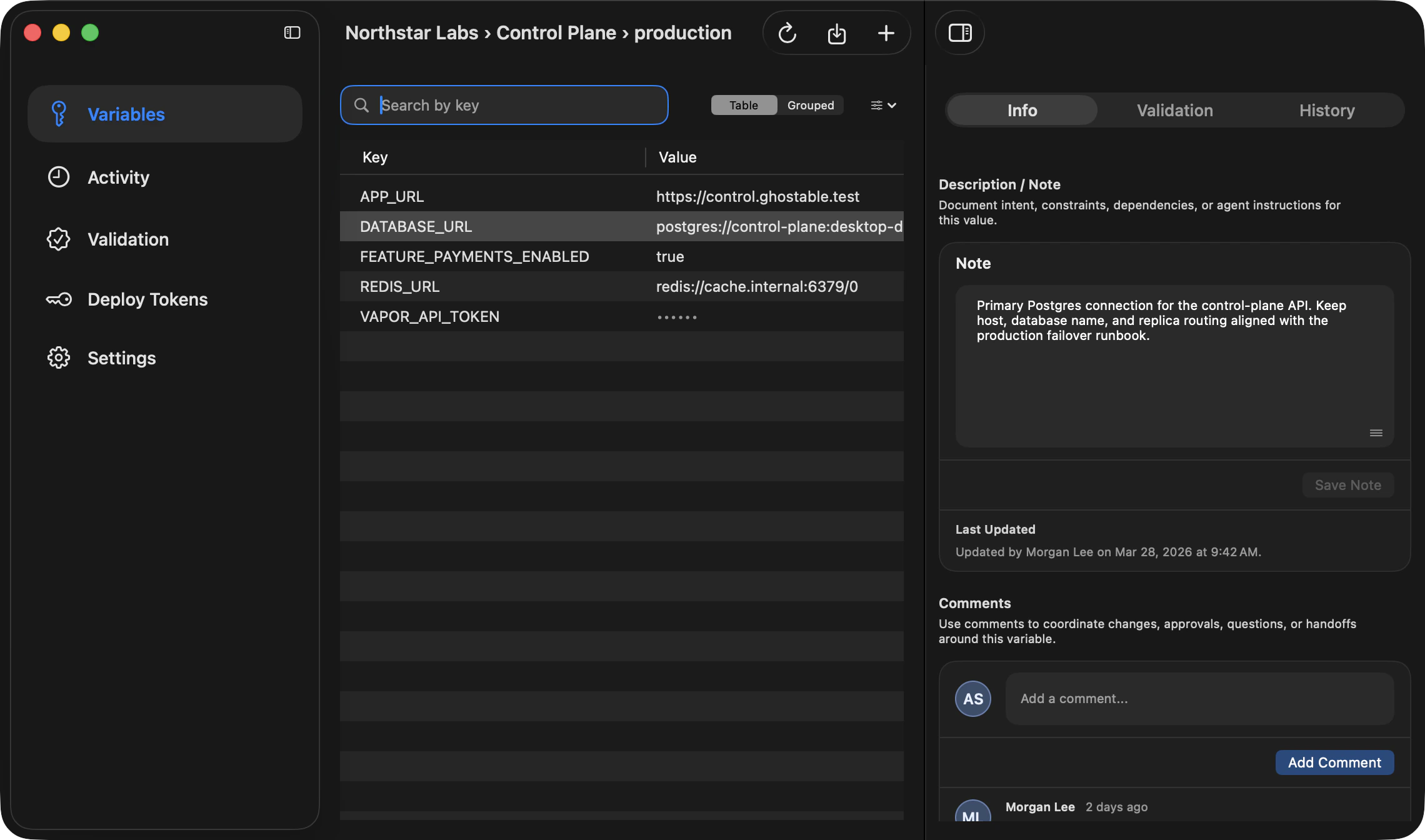
When you select a variable, the detail column opens. Use it to review:
* Info details such as size, version, and who last updated the value,
* validation issues,
* framework-specific insights,
* a shared description / note for documenting intent, constraints, dependencies, or agent
instructions,
* version history, including the optional reason for change attached when a value is updated,
* restore options for older values.
If no variable is selected, the detail pane collapses so the window behaves like a two-column view.
Desktop uses the top-level detail switcher for **Info**, **Validation**, and **History**. Inside the
**Info** view, the same pane also includes the **Description / Note** section for the selected
variable.
{/* ghostable:screenshot-output desktop-environments-variable-detail:start */}
## Variable Detail Pane
When you select a variable, the detail column opens. Use it to review:
* Info details such as size, version, and who last updated the value,
* validation issues,
* framework-specific insights,
* a shared description / note for documenting intent, constraints, dependencies, or agent
instructions,
* version history, including the optional reason for change attached when a value is updated,
* restore options for older values.
If no variable is selected, the detail pane collapses so the window behaves like a two-column view.
Desktop uses the top-level detail switcher for **Info**, **Validation**, and **History**. Inside the
**Info** view, the same pane also includes the **Description / Note** section for the selected
variable.
{/* ghostable:screenshot-output desktop-environments-variable-detail:start */}
 ## Comments
{/* ghostable:screenshot-output desktop-environments-variable-comments:start */}
## Comments
{/* ghostable:screenshot-output desktop-environments-variable-comments:start */}
 Use variable comments when the conversation belongs to one key and should stay attached to that
variable instead of getting lost in chat or issue threads.
This is a good place for rollout notes, approvals, handoffs, troubleshooting context, and questions
about a specific value.
Comments stay inside Ghostable's zero-knowledge model. The comment body is encrypted client-side and
only decrypted in trusted clients, while activity and notifications stay metadata-only.
The comments thread is flat, shared with authorized members, and visible from desktop, CLI, and
other trusted Ghostable clients.
## Pending Key Access
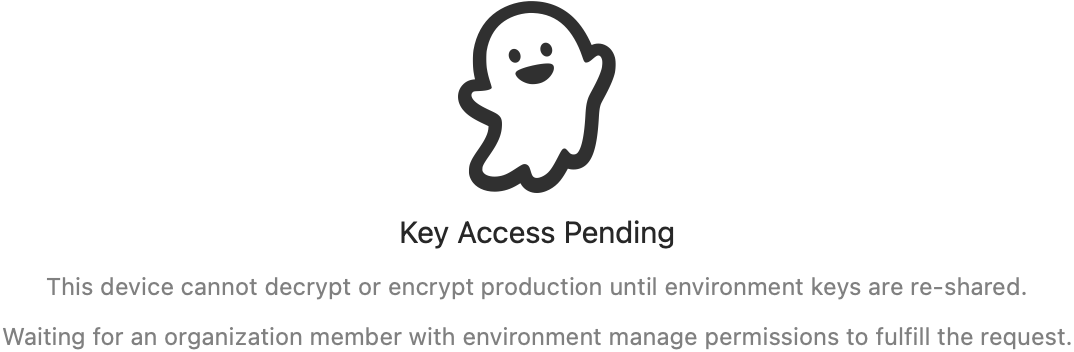
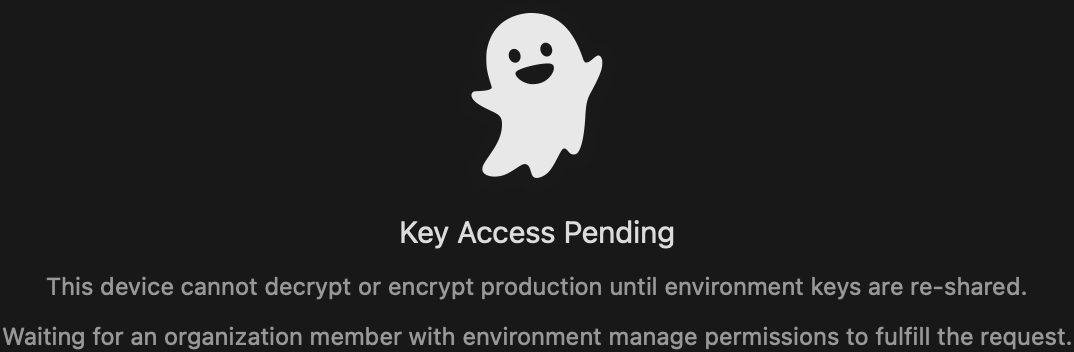
If this Mac has not received the necessary environment key yet, Ghostable shows a **Key Access
Pending** state instead of the variable list. The app can either wait for a teammate to fulfill the
request or copy the fallback CLI command for you.
{/* ghostable:screenshot-output desktop-environments-pending-key-reshare:start */}
Use variable comments when the conversation belongs to one key and should stay attached to that
variable instead of getting lost in chat or issue threads.
This is a good place for rollout notes, approvals, handoffs, troubleshooting context, and questions
about a specific value.
Comments stay inside Ghostable's zero-knowledge model. The comment body is encrypted client-side and
only decrypted in trusted clients, while activity and notifications stay metadata-only.
The comments thread is flat, shared with authorized members, and visible from desktop, CLI, and
other trusted Ghostable clients.
## Pending Key Access
If this Mac has not received the necessary environment key yet, Ghostable shows a **Key Access
Pending** state instead of the variable list. The app can either wait for a teammate to fulfill the
request or copy the fallback CLI command for you.
{/* ghostable:screenshot-output desktop-environments-pending-key-reshare:start */}
 ## Variable Promotion Requests
From the Variables table, select one or more keys and use the promote action to create a
cross-environment promotion request.
When this environment is the target of pending promotions, desktop surfaces a pending review banner
above the variables table so reviewers can open the request quickly.
For a complete review walkthrough (approve/reject behavior, value overrides, and decrypt-unavailable
states), use the dedicated promotions guide.
## Continue
Review and decide pending cross-environment promotion requests in desktop.
Review project-level validation and environment or project activity flows.
Learn the local file workflows behind environment editing.
## Variable Promotion Requests
From the Variables table, select one or more keys and use the promote action to create a
cross-environment promotion request.
When this environment is the target of pending promotions, desktop surfaces a pending review banner
above the variables table so reviewers can open the request quickly.
For a complete review walkthrough (approve/reject behavior, value overrides, and decrypt-unavailable
states), use the dedicated promotions guide.
## Continue
Review and decide pending cross-environment promotion requests in desktop.
Review project-level validation and environment or project activity flows.
Learn the local file workflows behind environment editing.