> ## Documentation Index
> Fetch the complete documentation index at: https://docs.ghostable.dev/llms.txt
> Use this file to discover all available pages before exploring further.
# Validation & History
> Edit validation rules, run checks from a linked project folder, and inspect project or environment history in the app.
Validation uses the same `.ghostable` schema files across Desktop and CLI.
## Project Validation
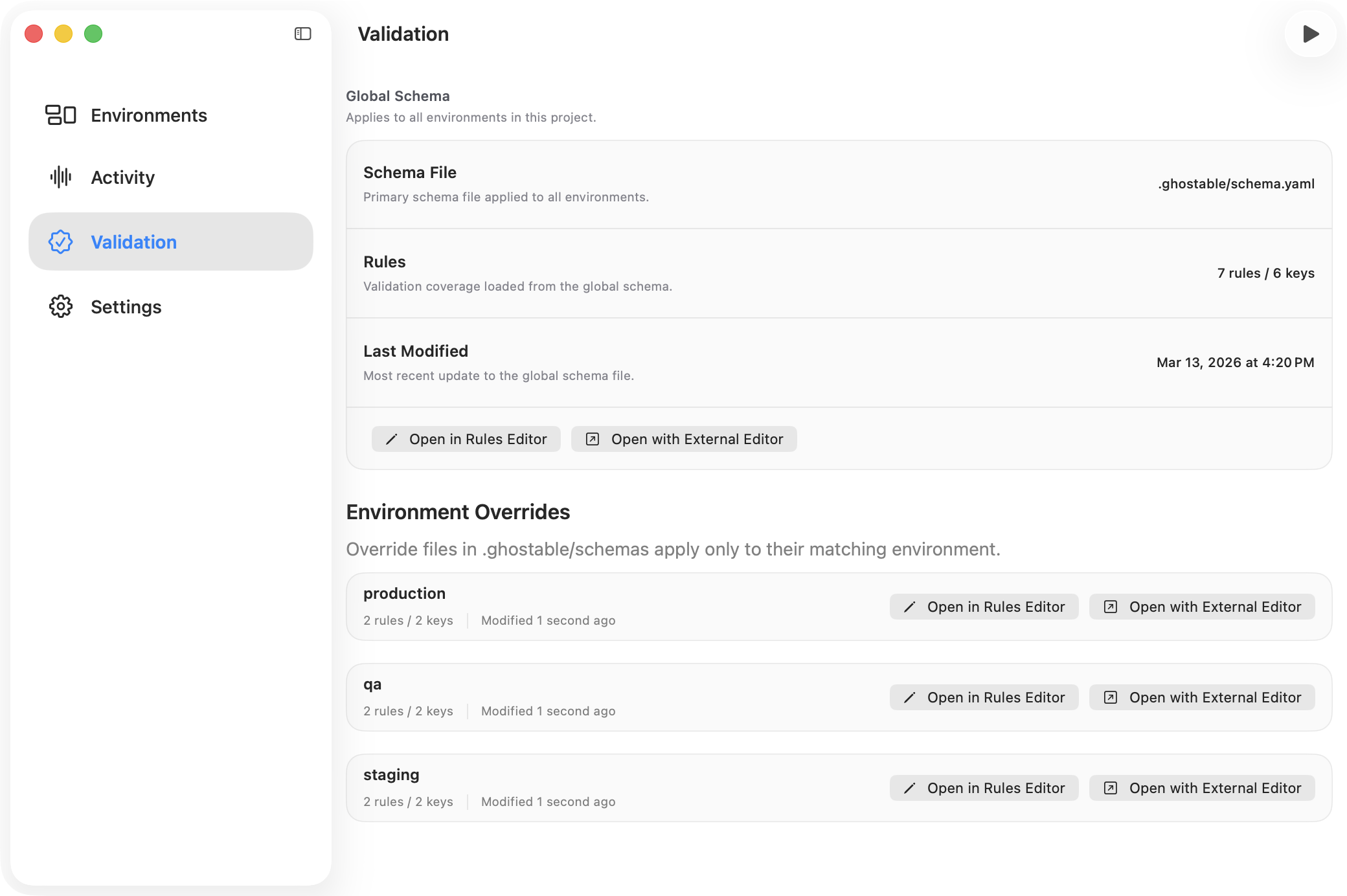
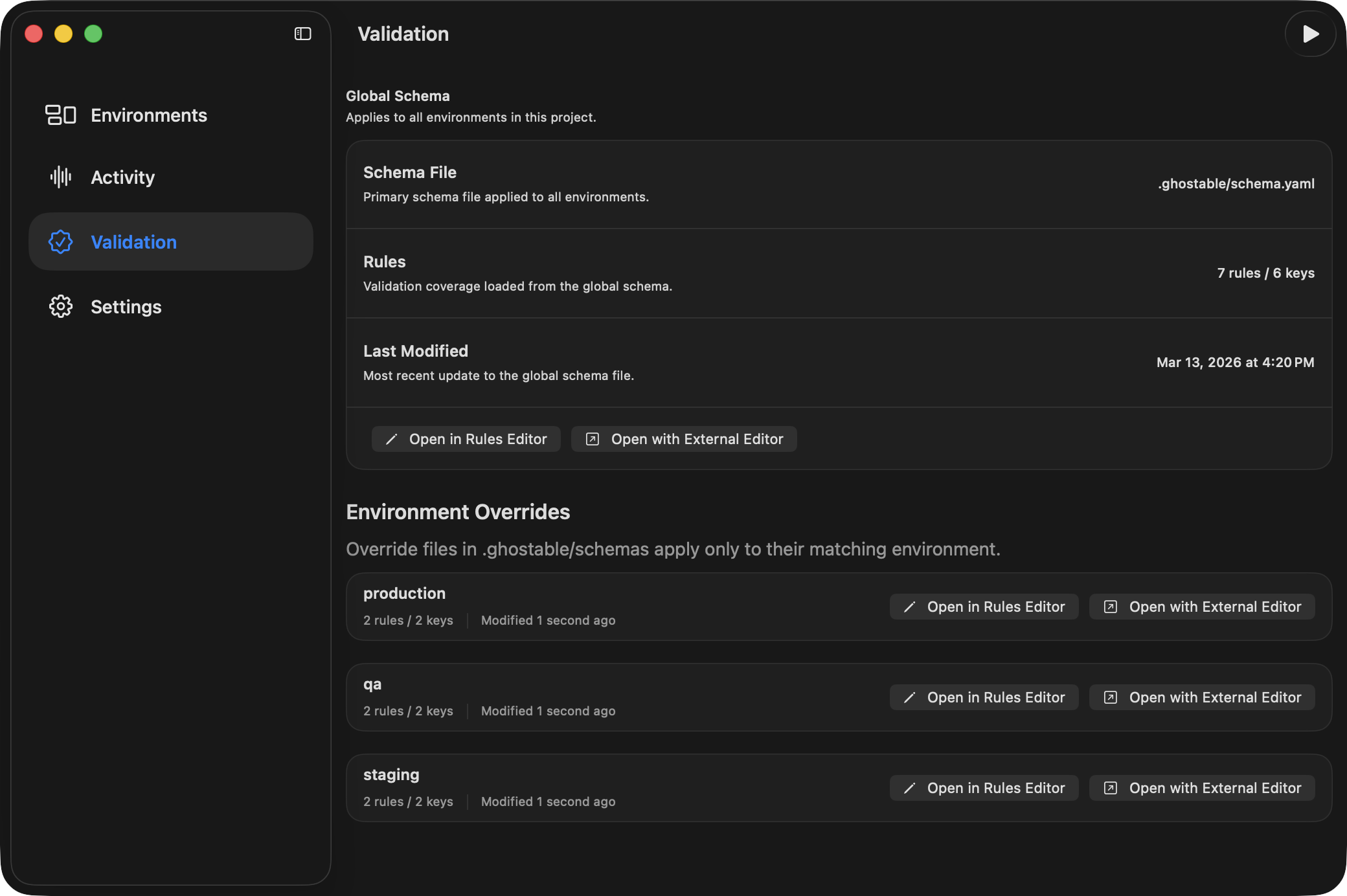
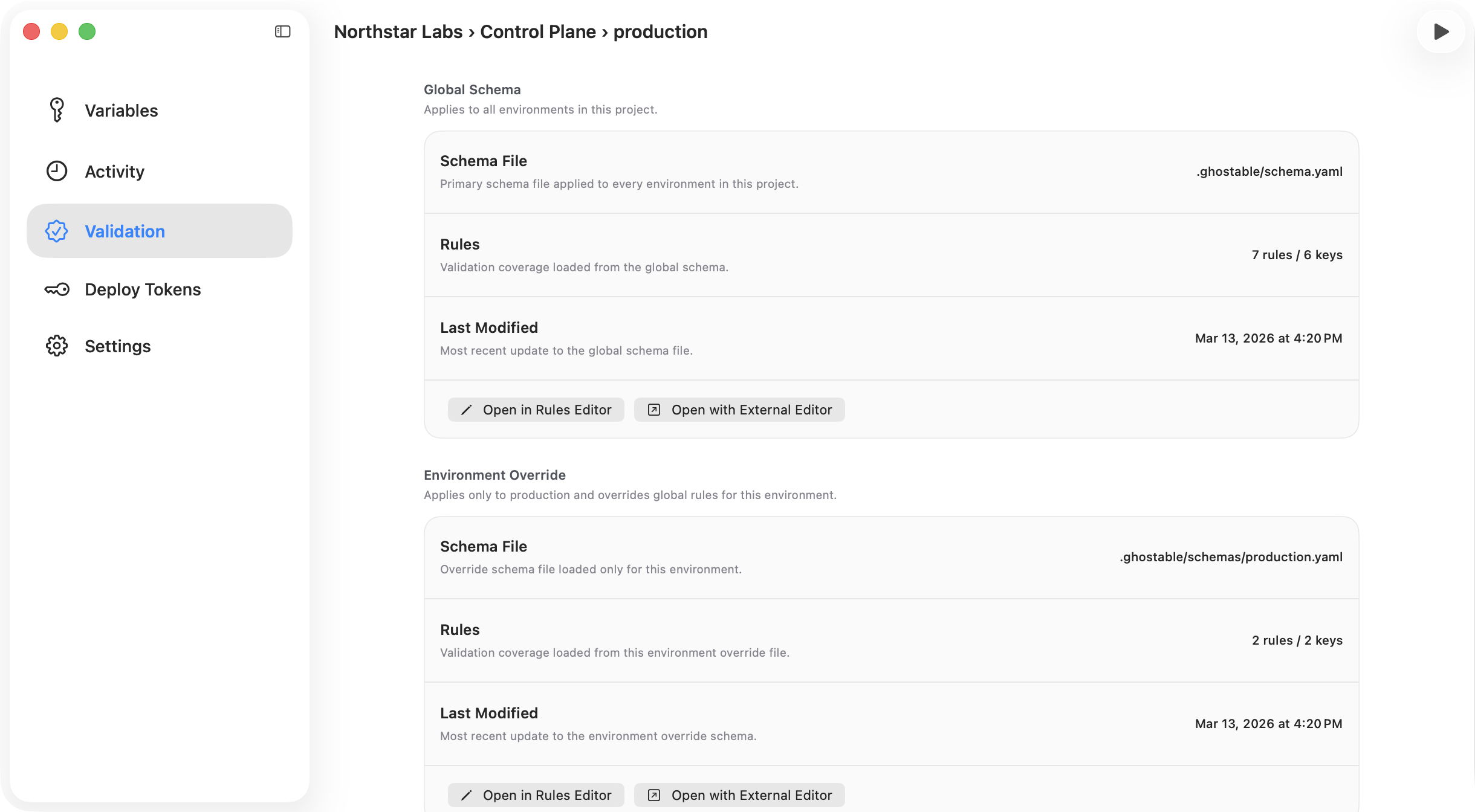
The Project window includes a **Validation** section that reads the linked local folder and loads
the project's Ghostable schema files.
From this view you can:
* confirm whether a folder is linked,
* see schema coverage,
* inspect environment-specific override files,
* run validation for a selected environment,
* review validation results in a modal.
Validation requires a linked local folder. If the project is not linked yet, Desktop points you
back to Project Settings first.
{/* ghostable:screenshot-output desktop-validation-project-overview:start */}
 ## Built-In Rules Editor
Desktop can edit the same `.ghostable` schema files used by the CLI without requiring you to hand
edit YAML.
For project-wide rules:
1. Open the project's **Validation** section.
2. In **Global Schema**, choose **Open in Rules Editor**.
3. If the project does not have a schema yet, use **Auto-Generate** first to create
`.ghostable/schema.yaml`.
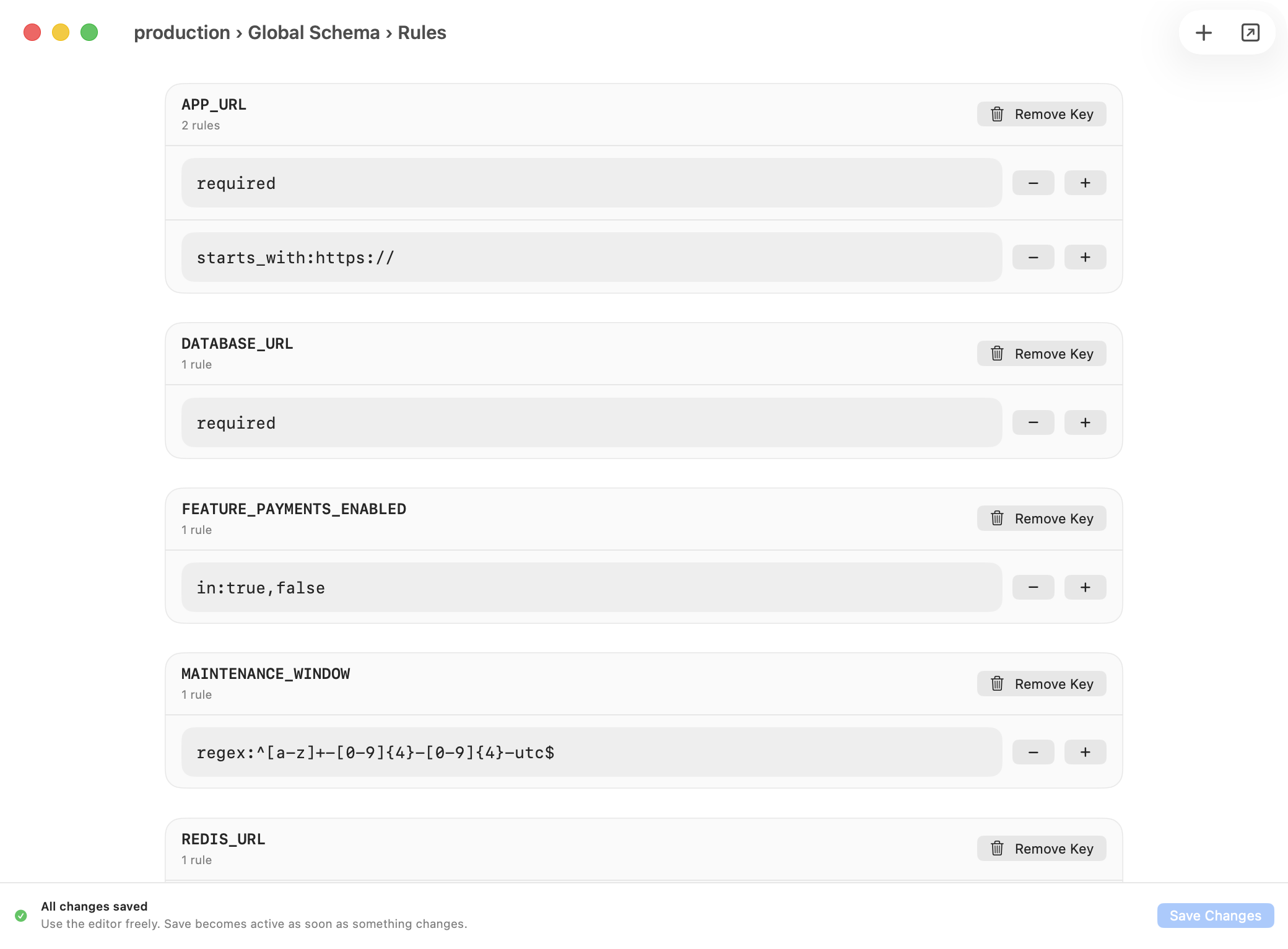
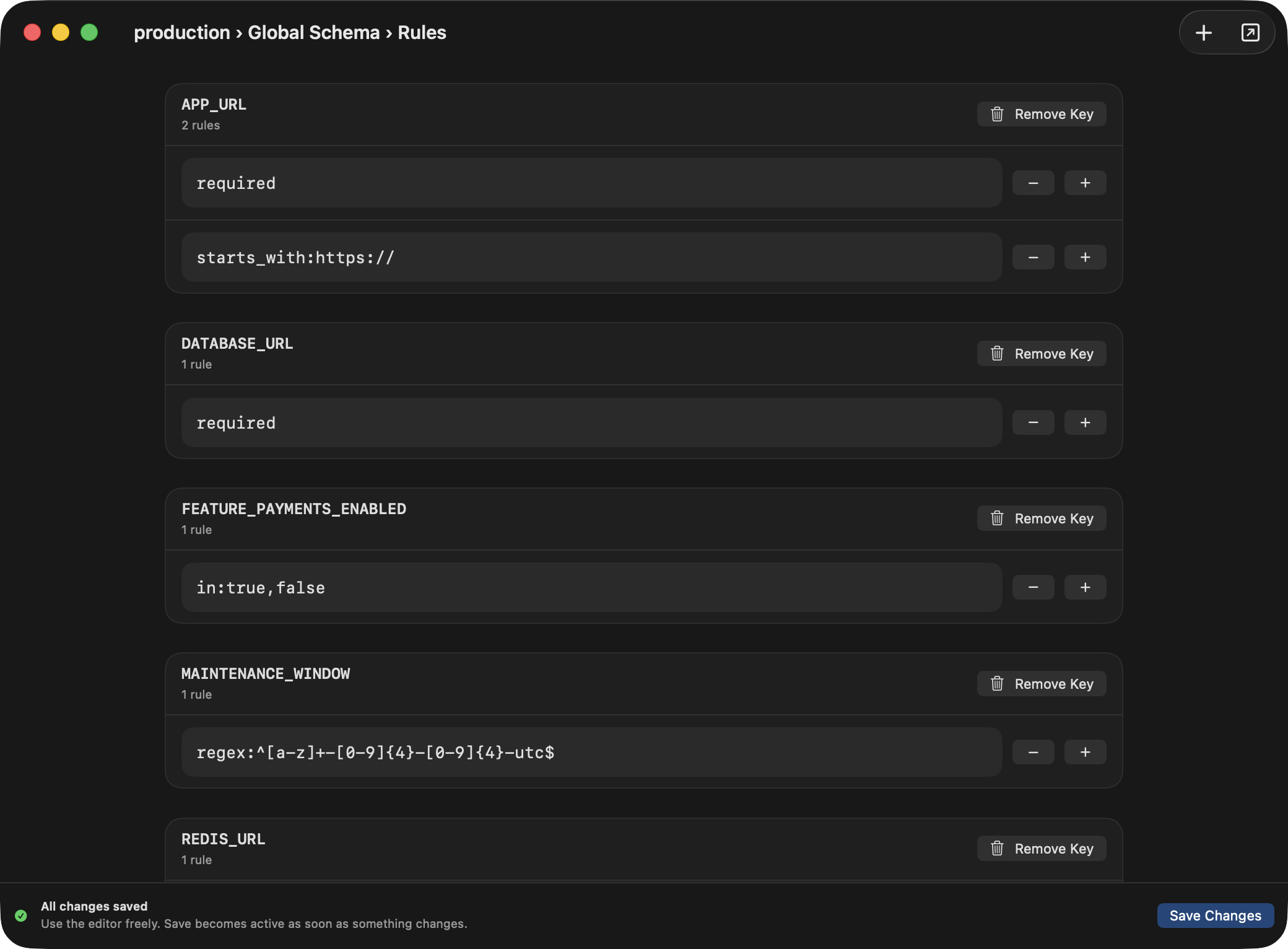
Inside the Rules Editor you can:
* add keys with suggestions from the current environment,
* add common rule templates from the **Add Rule** menu,
* edit parameterized rules such as `min`, `max`, `in`, `regex`, `starts_with`, and `ends_with`,
* remove keys or rules and save directly back to the schema file.
Desktop writes to the same `.ghostable/schema.yaml` and `.ghostable/schemas/*.yaml` files the
CLI reads. If you prefer raw YAML, the app also offers **Open with External Editor**.
{/* ghostable:screenshot-output desktop-validation-rules-editor:start */}
## Built-In Rules Editor
Desktop can edit the same `.ghostable` schema files used by the CLI without requiring you to hand
edit YAML.
For project-wide rules:
1. Open the project's **Validation** section.
2. In **Global Schema**, choose **Open in Rules Editor**.
3. If the project does not have a schema yet, use **Auto-Generate** first to create
`.ghostable/schema.yaml`.
Inside the Rules Editor you can:
* add keys with suggestions from the current environment,
* add common rule templates from the **Add Rule** menu,
* edit parameterized rules such as `min`, `max`, `in`, `regex`, `starts_with`, and `ends_with`,
* remove keys or rules and save directly back to the schema file.
Desktop writes to the same `.ghostable/schema.yaml` and `.ghostable/schemas/*.yaml` files the
CLI reads. If you prefer raw YAML, the app also offers **Open with External Editor**.
{/* ghostable:screenshot-output desktop-validation-rules-editor:start */}
 ## Global Rules vs Environment Overrides
Use the **Global Schema** for rules every environment should share. Use an **Environment Override**
only when one environment needs different or stricter validation.
For environment-specific rules:
1. Open the target environment.
2. Open its **Validation** section.
3. In **Environment Override**, choose **Auto-Generate** if no override exists yet, or **Open in
Rules Editor** if it already does.
4. Save the override to `.ghostable/schemas/.yaml`.
The override file applies only to that environment and takes precedence over the global schema for
the keys it defines.
The Project window's **Validation** view also lists discovered override files so you can inspect
coverage and reopen them in the Rules Editor later.
{/* ghostable:screenshot-output desktop-validation-environment-override:start */}
## Global Rules vs Environment Overrides
Use the **Global Schema** for rules every environment should share. Use an **Environment Override**
only when one environment needs different or stricter validation.
For environment-specific rules:
1. Open the target environment.
2. Open its **Validation** section.
3. In **Environment Override**, choose **Auto-Generate** if no override exists yet, or **Open in
Rules Editor** if it already does.
4. Save the override to `.ghostable/schemas/.yaml`.
The override file applies only to that environment and takes precedence over the global schema for
the keys it defines.
The Project window's **Validation** view also lists discovered override files so you can inspect
coverage and reopen them in the Rules Editor later.
{/* ghostable:screenshot-output desktop-validation-environment-override:start */}
 ## Activity and History
Desktop exposes history in three places:
* **Organization Activity** for organization-wide events.
* **Project Activity** for project-level changes.
* **Environment Activity** and variable detail history for environment-level work.
Variable history is especially useful when you need to inspect or restore a prior value version from
the detail pane.
Context activity shows up here too. For example, you can see when a teammate:
* updates a variable note,
* adds or deletes a variable comment,
* updates a variable value with a reason for change,
* approves or rejects a variable promotion request.
These activity entries stay metadata-only. They identify the actor, variable, project, or
environment involved, but they do not expose the decrypted note, comment, or reason in the activity
feed itself.
## Continue
Connect the project folder before you rely on validation and export features.
Return to the environment guide for the main editing workflow.
## Activity and History
Desktop exposes history in three places:
* **Organization Activity** for organization-wide events.
* **Project Activity** for project-level changes.
* **Environment Activity** and variable detail history for environment-level work.
Variable history is especially useful when you need to inspect or restore a prior value version from
the detail pane.
Context activity shows up here too. For example, you can see when a teammate:
* updates a variable note,
* adds or deletes a variable comment,
* updates a variable value with a reason for change,
* approves or rejects a variable promotion request.
These activity entries stay metadata-only. They identify the actor, variable, project, or
environment involved, but they do not expose the decrypted note, comment, or reason in the activity
feed itself.
## Continue
Connect the project folder before you rely on validation and export features.
Return to the environment guide for the main editing workflow.