> ## Documentation Index
> Fetch the complete documentation index at: https://docs.ghostable.dev/llms.txt
> Use this file to discover all available pages before exploring further.
# Install & Sign In
> Install the macOS app, authenticate in the browser, and optionally enable Touch ID.
Review how Ghostable handles trusted devices and local key material across clients.
## Requirements
* macOS 26.2 or later for the current desktop build.
* A Ghostable account with access to at least one organization.
## Install the App
Download the latest Ghostable desktop build from
[ghostable.dev/desktop/download](https://ghostable.dev/desktop/download), then move it into
`Applications` before launching it. That URL always redirects to the current stable desktop release.
The first launch opens the sign-in window.
## Sign In
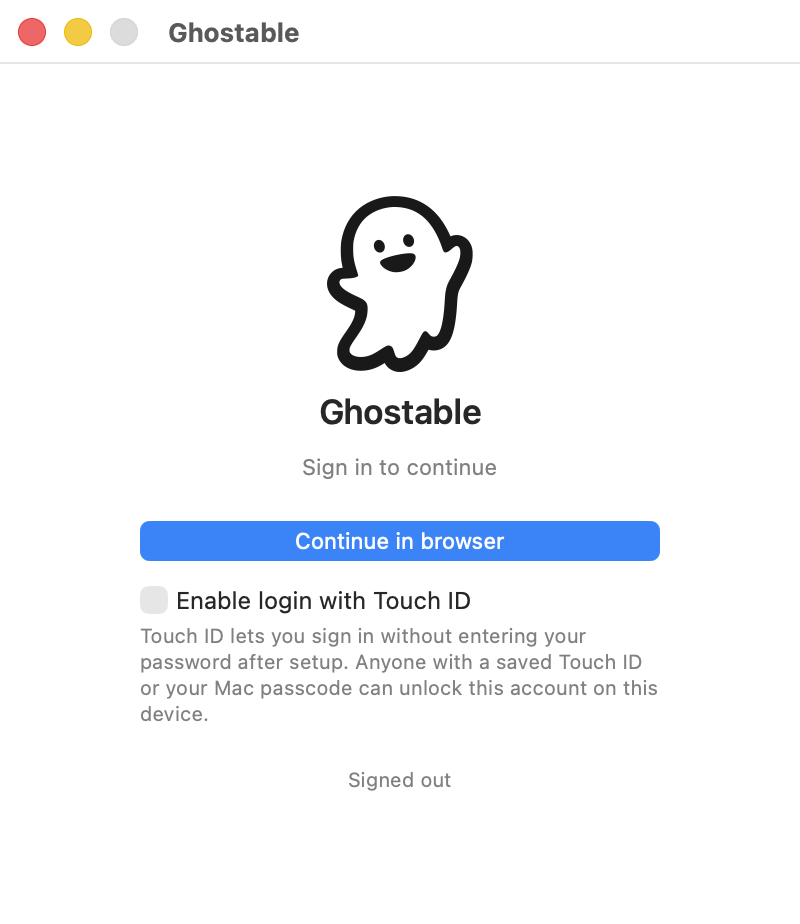
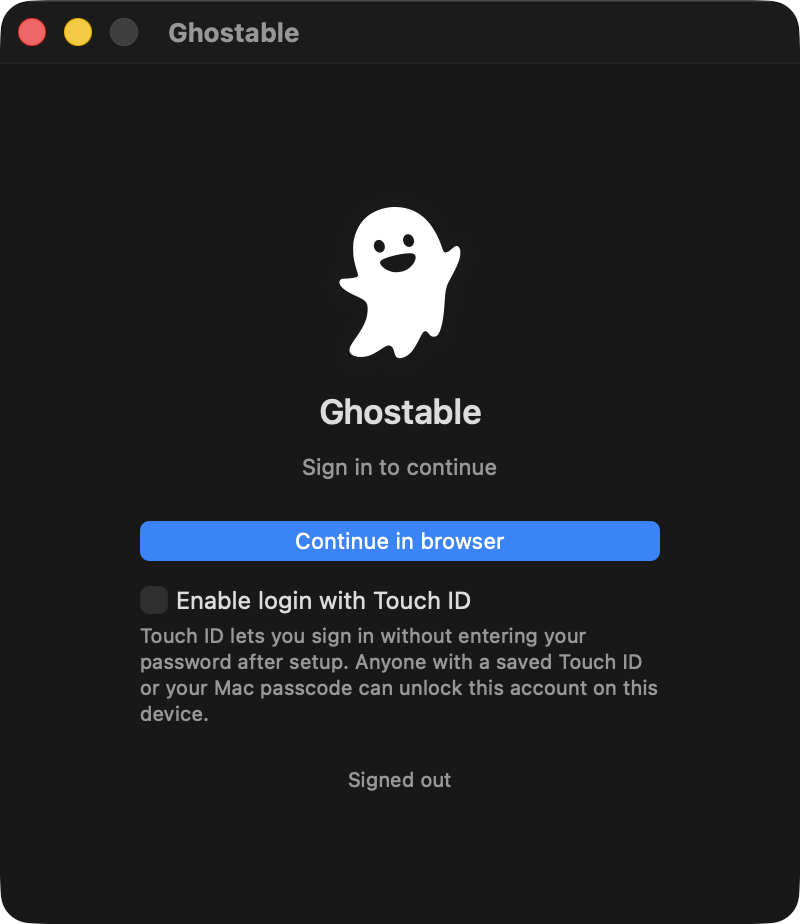
Click **Continue in browser** in the desktop app. The app opens your default browser so you can
finish authentication with Ghostable or your SSO provider.
After the browser flow completes, the desktop app resumes the session automatically.
## Optional: Touch ID
If Touch ID is available on your Mac, the sign-in window offers **Enable login with Touch ID**. Use
it if you want the app to unlock future sessions without entering credentials again.
Anyone who can unlock your Mac with Touch ID or the device passcode can unlock that local
Ghostable session too. Treat it as a convenience feature for a trusted workstation.
{/* ghostable:screenshot-output desktop-install-sign-in-login-screen:start */}
 ## What Happens Next
After sign-in, Ghostable checks whether this Mac has already been linked as a trusted device. If it
has not, the app opens the device-link flow immediately.
## Continue
Register the Mac before you try to read or change encrypted environments.
Learn where projects, environments, and app settings live after sign-in.
## What Happens Next
After sign-in, Ghostable checks whether this Mac has already been linked as a trusted device. If it
has not, the app opens the device-link flow immediately.
## Continue
Register the Mac before you try to read or change encrypted environments.
Learn where projects, environments, and app settings live after sign-in.