

Read the shared environment model
This guide covers the macOS UI; the linked Fundamentals page explains what environments mean
across clients.
Open an Environment
From a Project window, use the Environments section to browse available environments and open one in its own window.Variables View
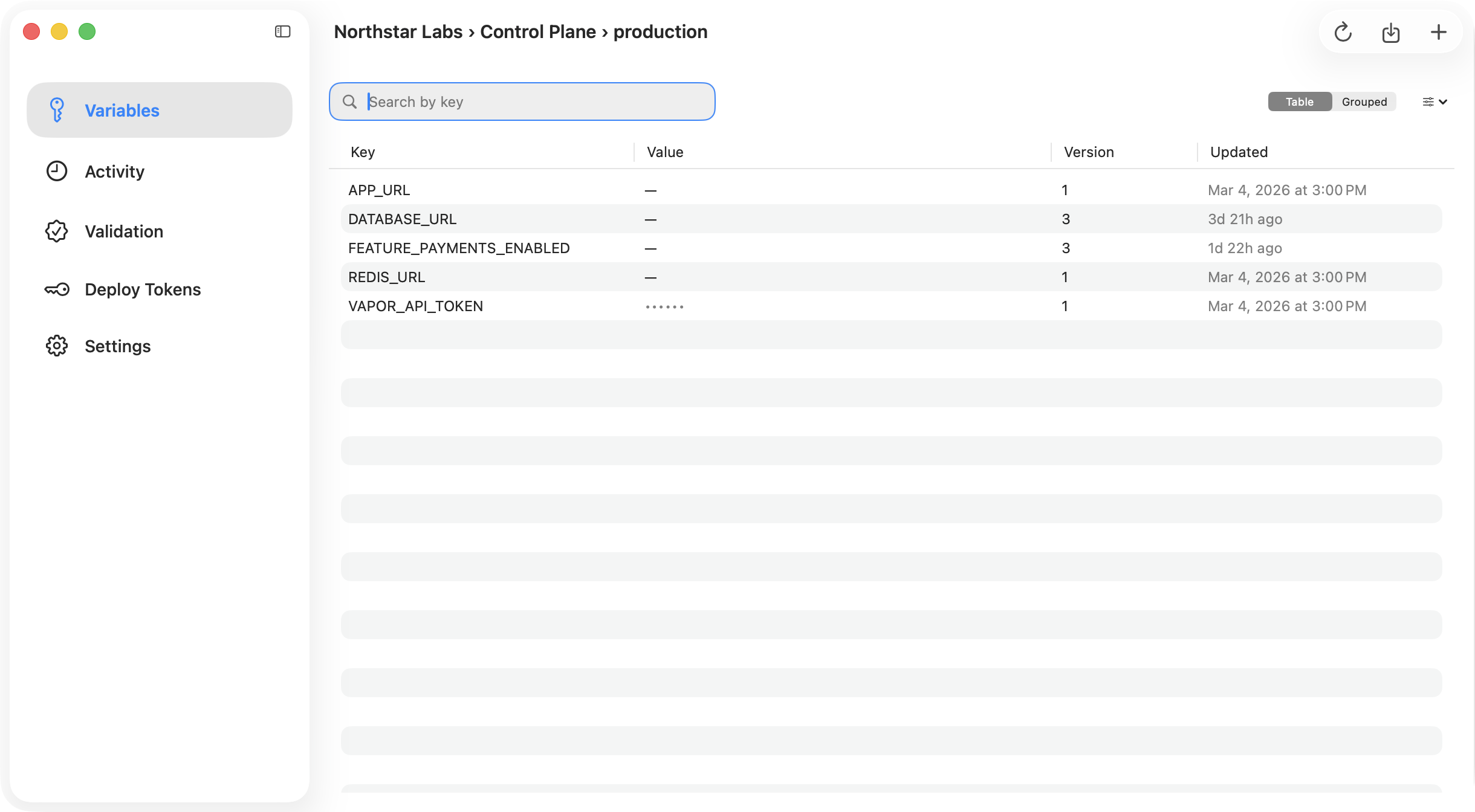
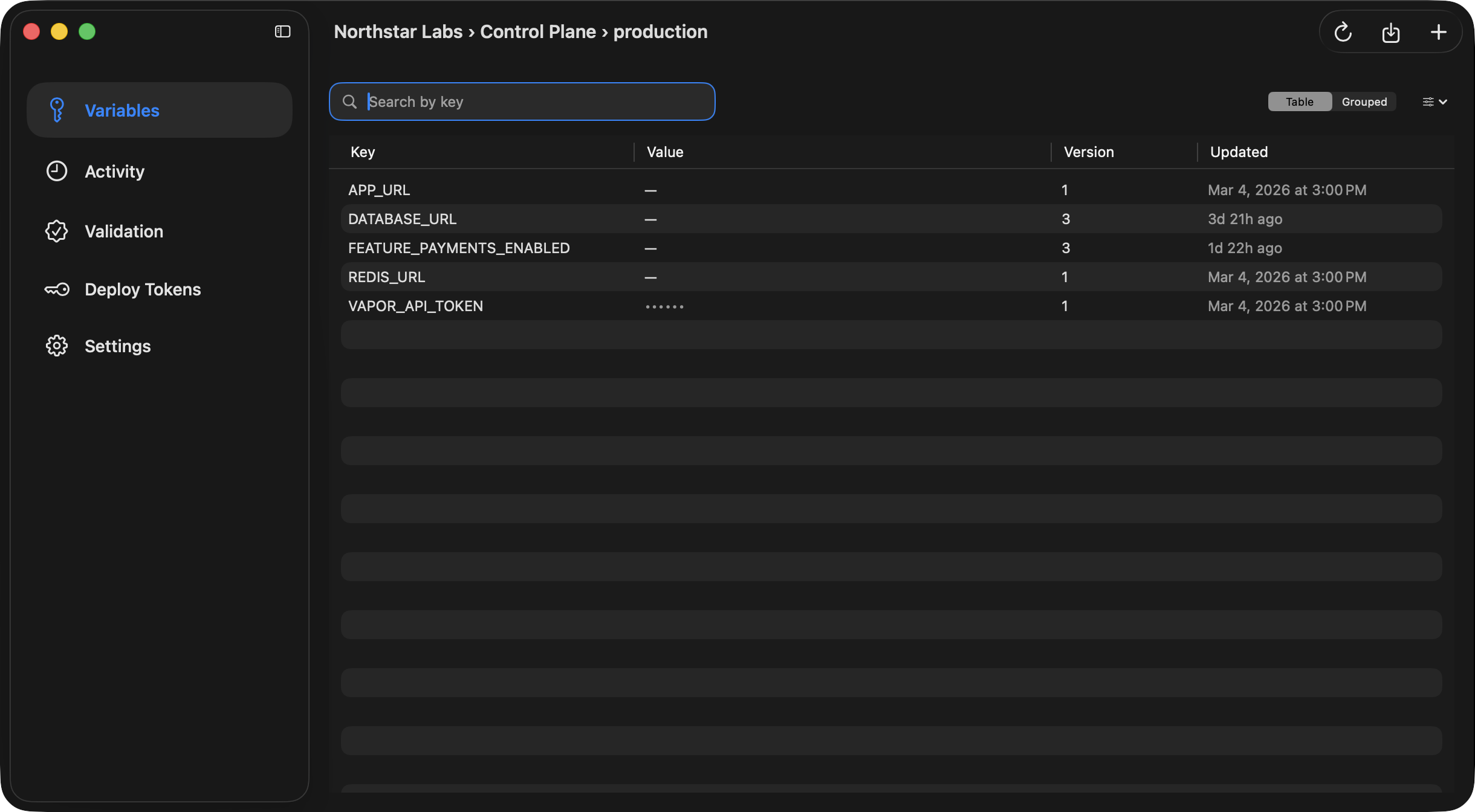
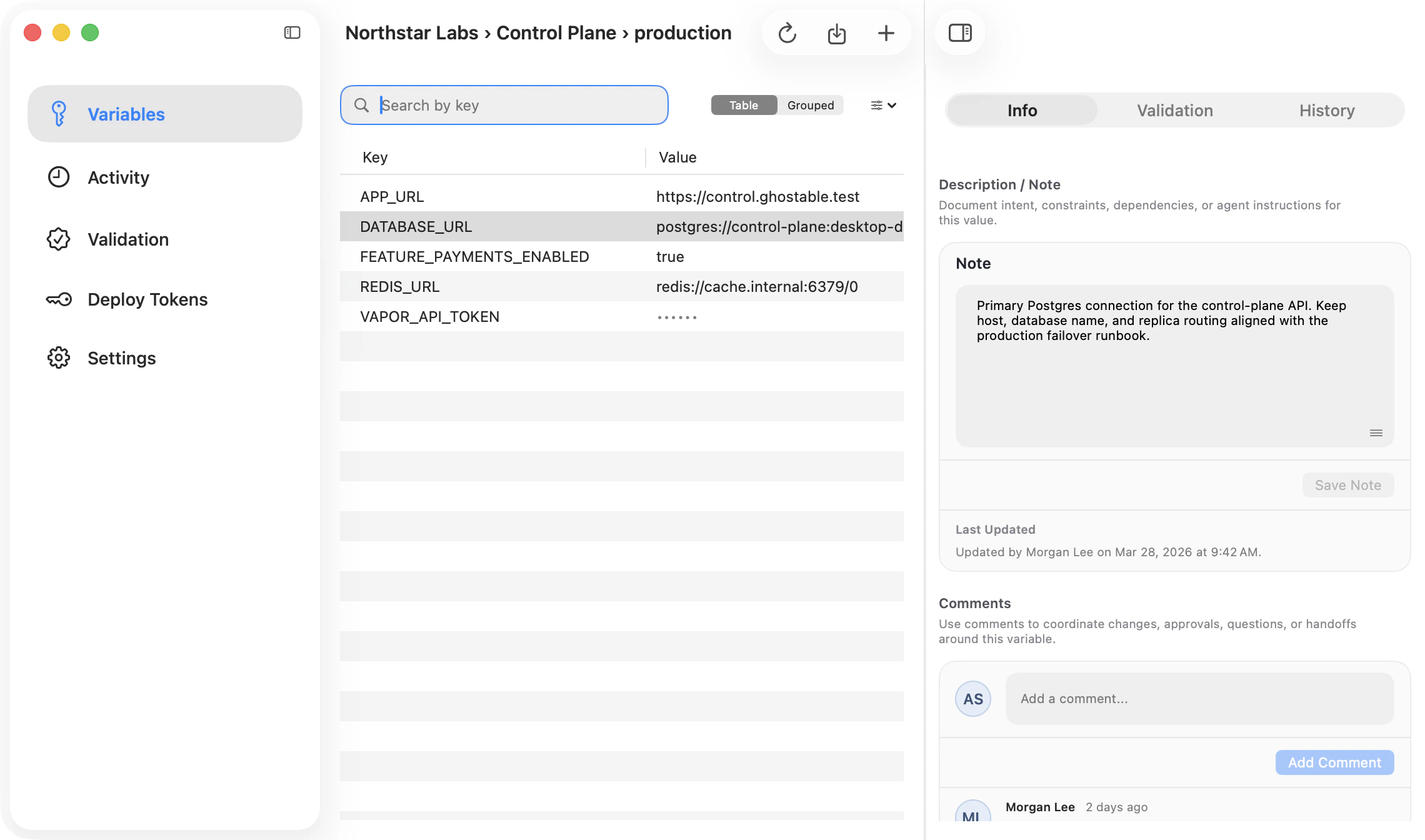
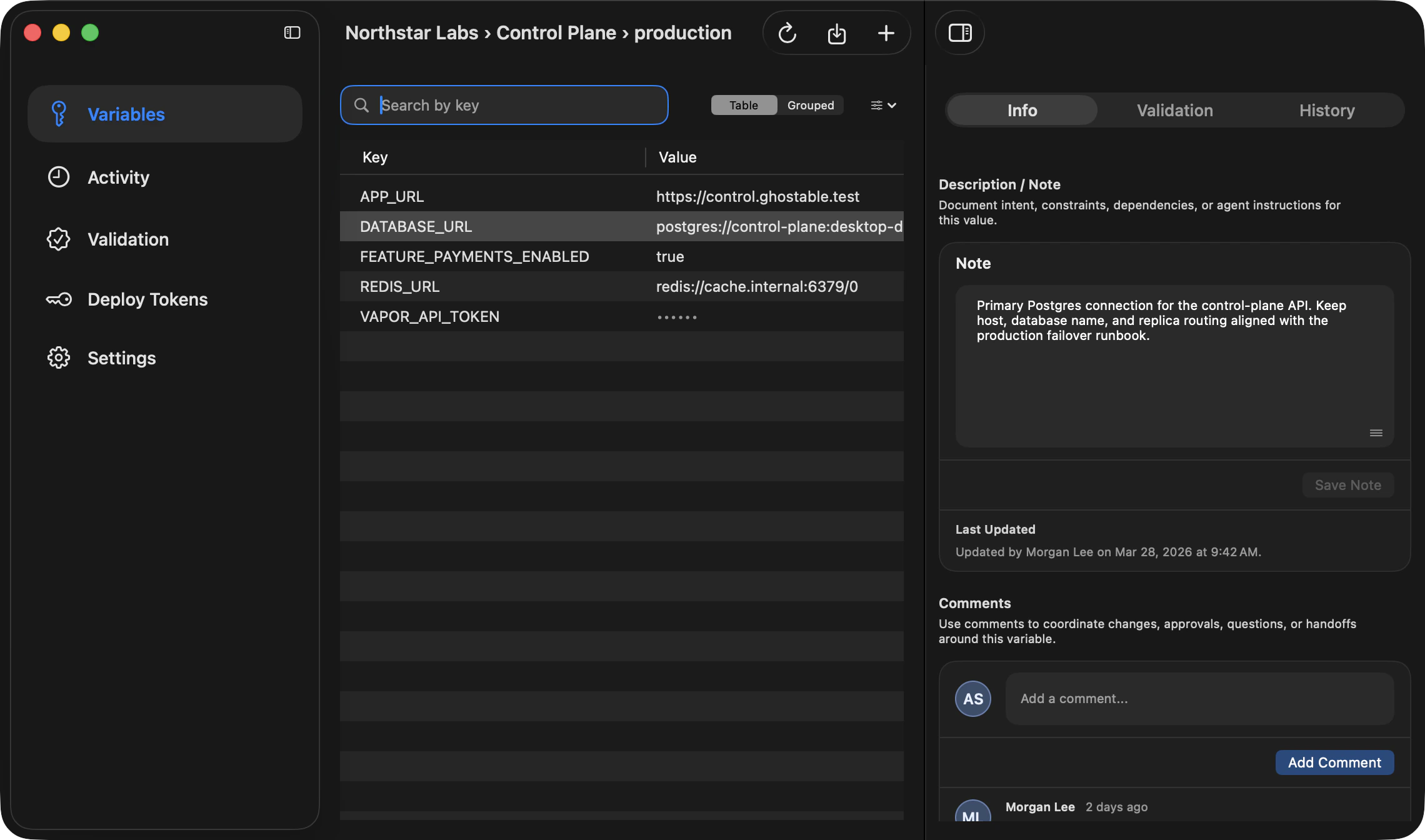
The Variables section is the main workspace for environment data. It supports:- search by variable key,
- table and grouped layouts,
- hiding disabled variables,
- creating new variables,
- disabling or deleting existing variables,
- importing a local
.envfile, - exporting the environment back to a local file.
Variable Detail Pane
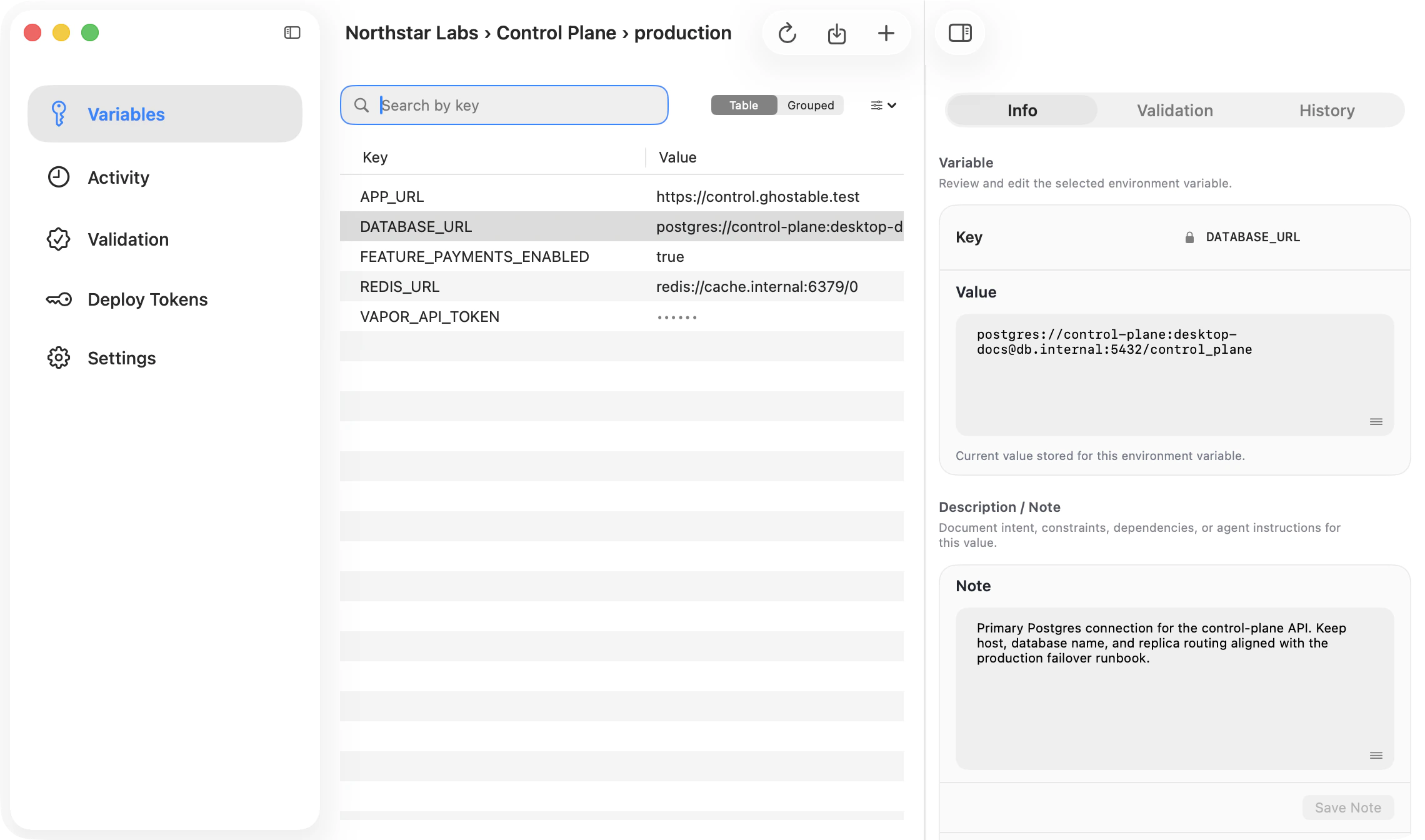
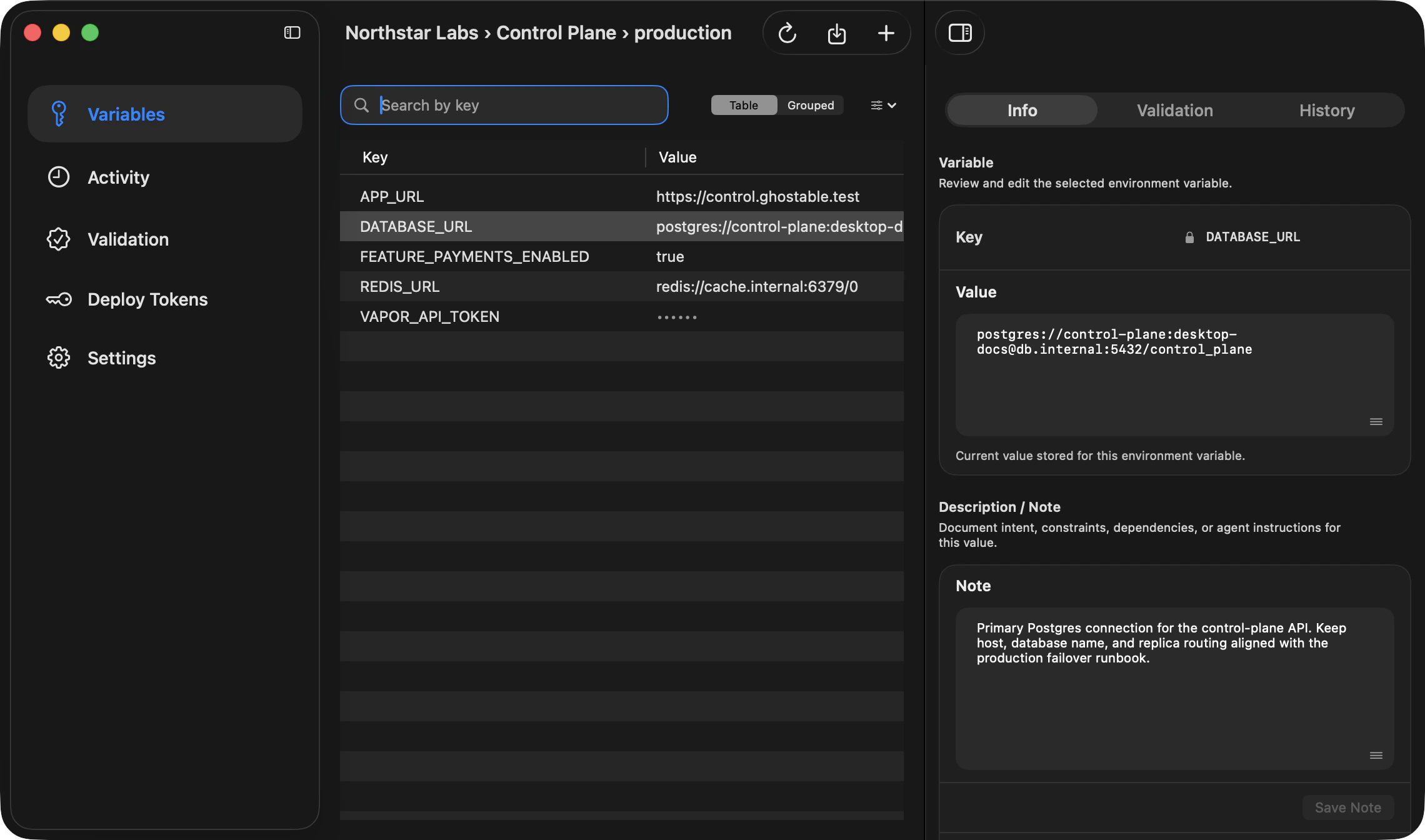
When you select a variable, the detail column opens. Use it to review:- Info details such as size, version, and who last updated the value,
- validation issues,
- framework-specific insights,
- a shared description / note for documenting intent, constraints, dependencies, or agent instructions,
- version history, including the optional reason for change attached when a value is updated,
- restore options for older values.
Comments
Pending Key Access
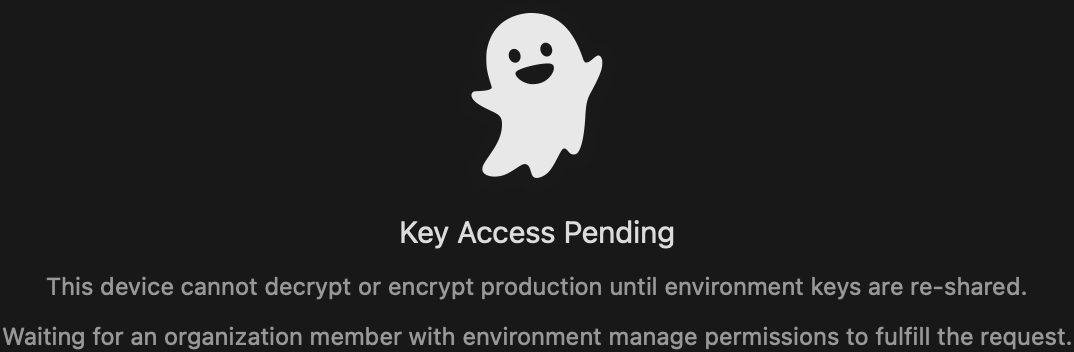
If this Mac has not received the necessary environment key yet, Ghostable shows a Key Access Pending state instead of the variable list. The app can either wait for a teammate to fulfill the request or copy the fallback CLI command for you.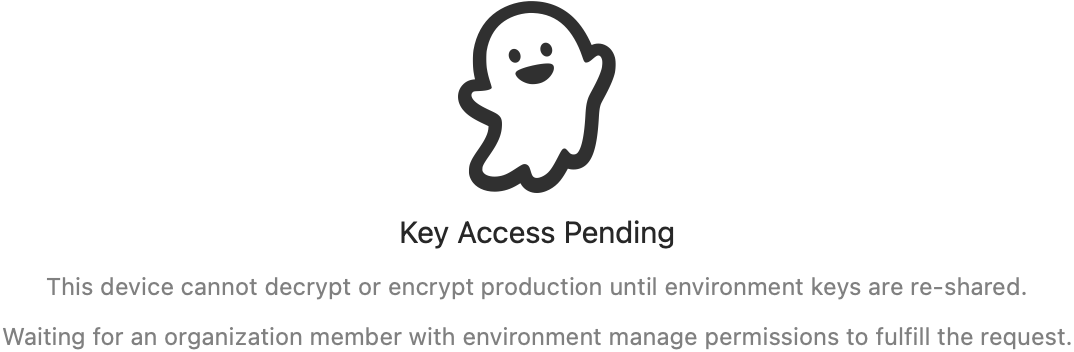
Variable Promotion Requests
From the Variables table, select one or more keys and use the promote action to create a cross-environment promotion request. When this environment is the target of pending promotions, desktop surfaces a pending review banner above the variables table so reviewers can open the request quickly. For a complete review walkthrough (approve/reject behavior, value overrides, and decrypt-unavailable states), use the dedicated promotions guide.Continue
Promotion requests
Review and decide pending cross-environment promotion requests in desktop.
Validation and history
Review project-level validation and environment or project activity flows.
Import and export .env files
Learn the local file workflows behind environment editing.