

Read the shared validation model
Validation uses the same
.ghostable schema files across Desktop and CLI.Project Validation
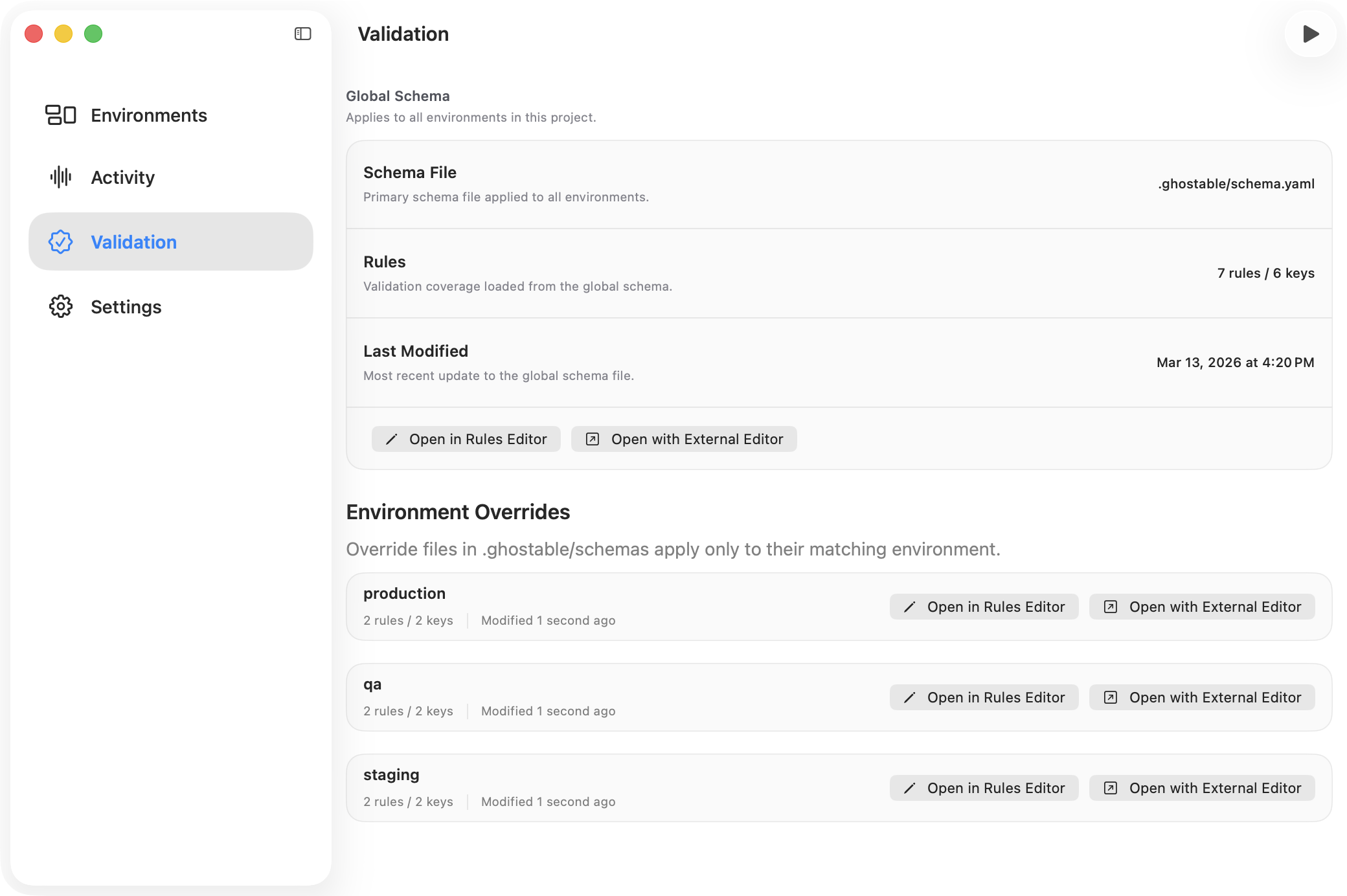
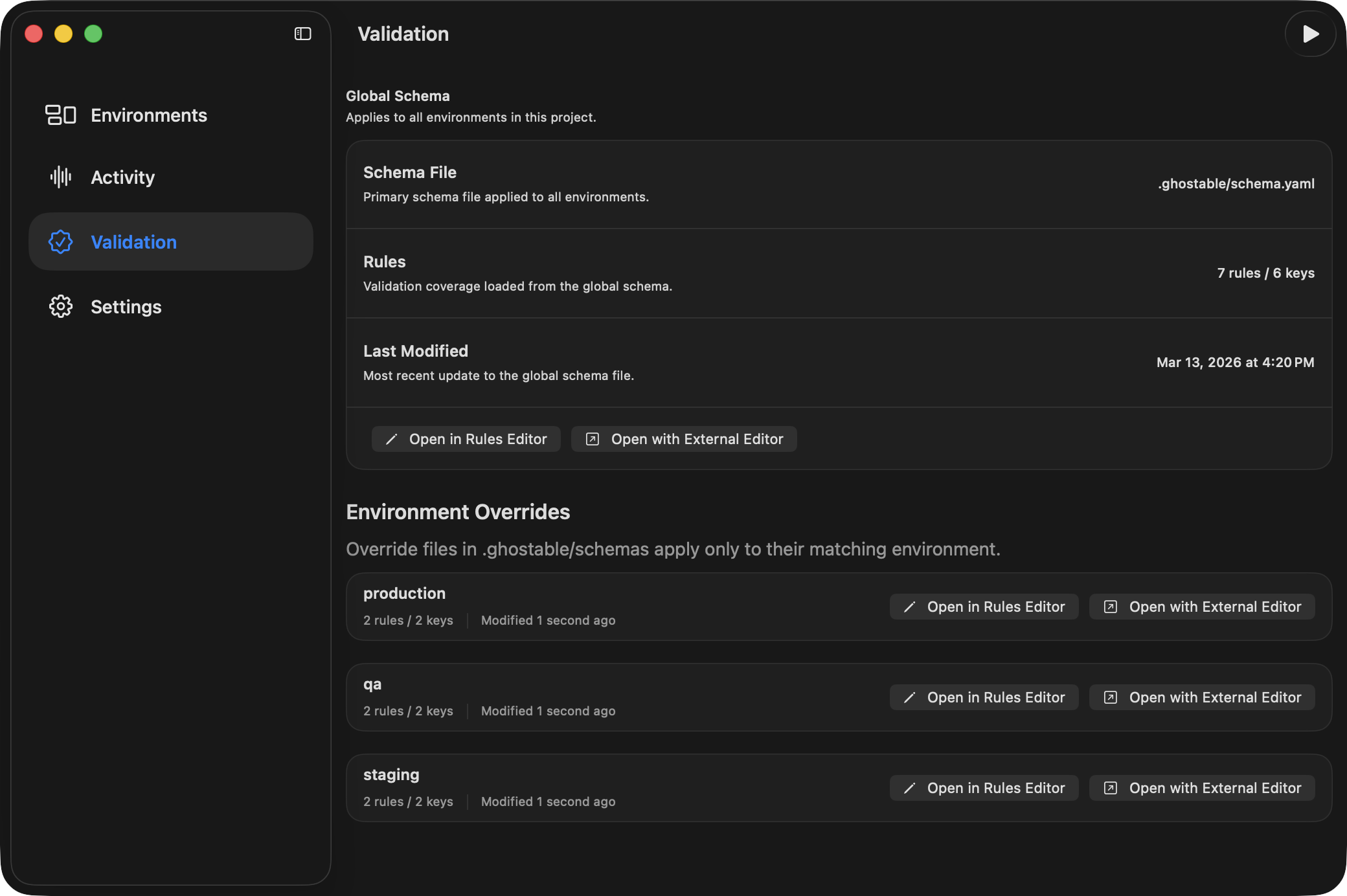
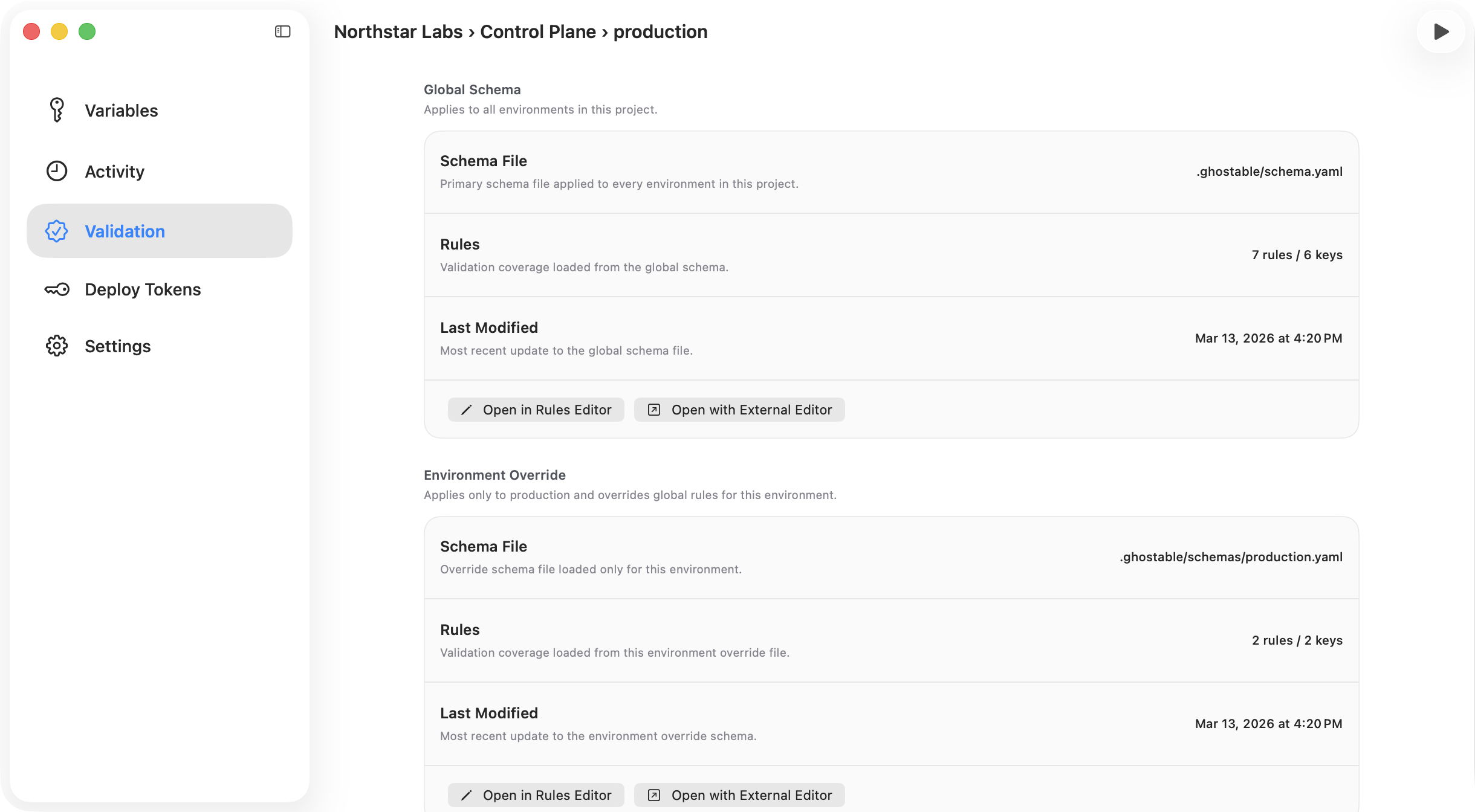
The Project window includes a Validation section that reads the linked local folder and loads the project’s Ghostable schema files. From this view you can:- confirm whether a folder is linked,
- see schema coverage,
- inspect environment-specific override files,
- run validation for a selected environment,
- review validation results in a modal.
Validation requires a linked local folder. If the project is not linked yet, Desktop points you
back to Project Settings first.
Built-In Rules Editor
Desktop can edit the same.ghostable schema files used by the CLI without requiring you to hand
edit YAML.
For project-wide rules:
- Open the project’s Validation section.
- In Global Schema, choose Open in Rules Editor.
- If the project does not have a schema yet, use Auto-Generate first to create
.ghostable/schema.yaml.
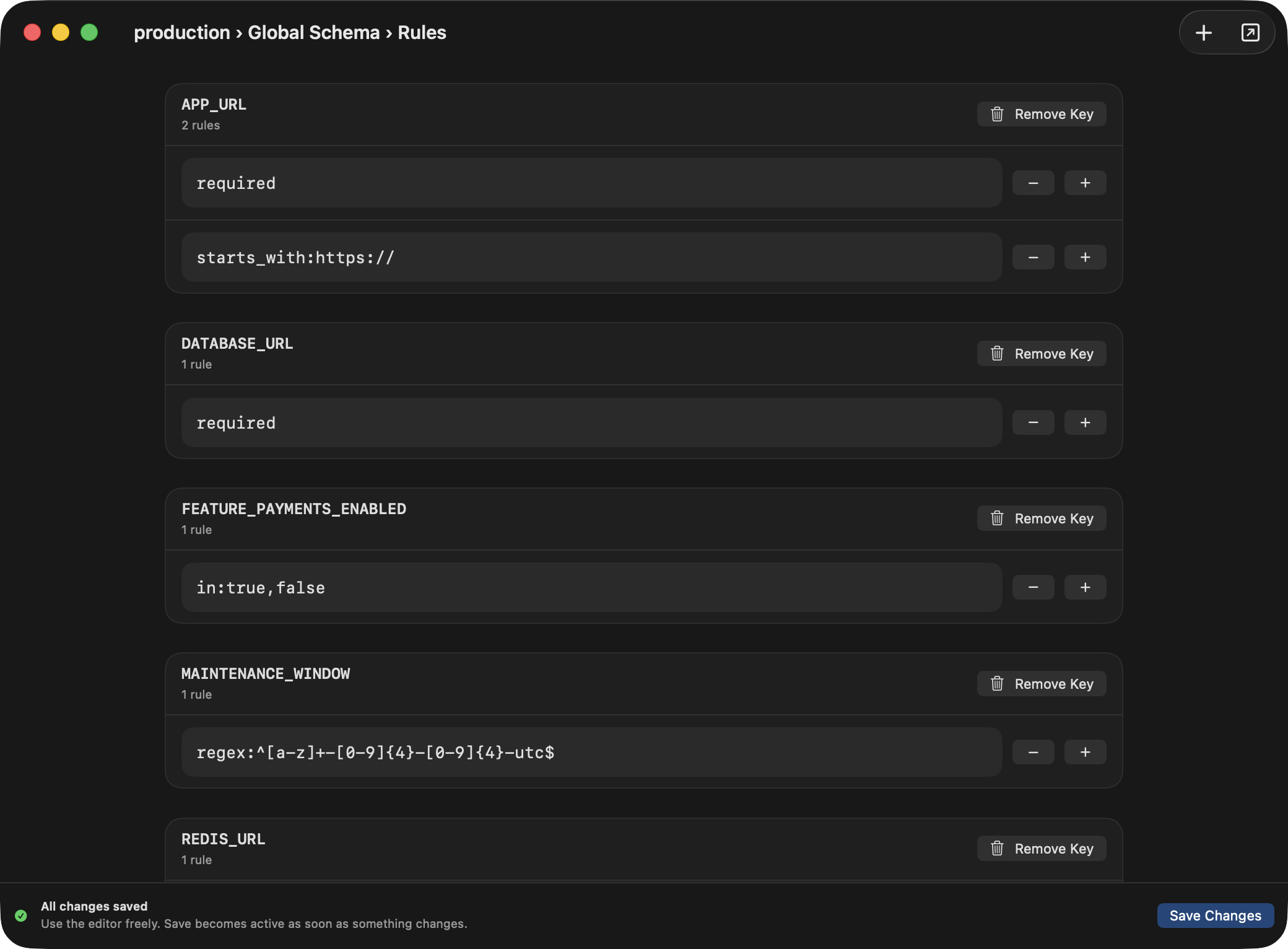
- add keys with suggestions from the current environment,
- add common rule templates from the Add Rule menu,
- edit parameterized rules such as
min,max,in,regex,starts_with, andends_with, - remove keys or rules and save directly back to the schema file.
Desktop writes to the same
.ghostable/schema.yaml and .ghostable/schemas/*.yaml files the
CLI reads. If you prefer raw YAML, the app also offers Open with External Editor.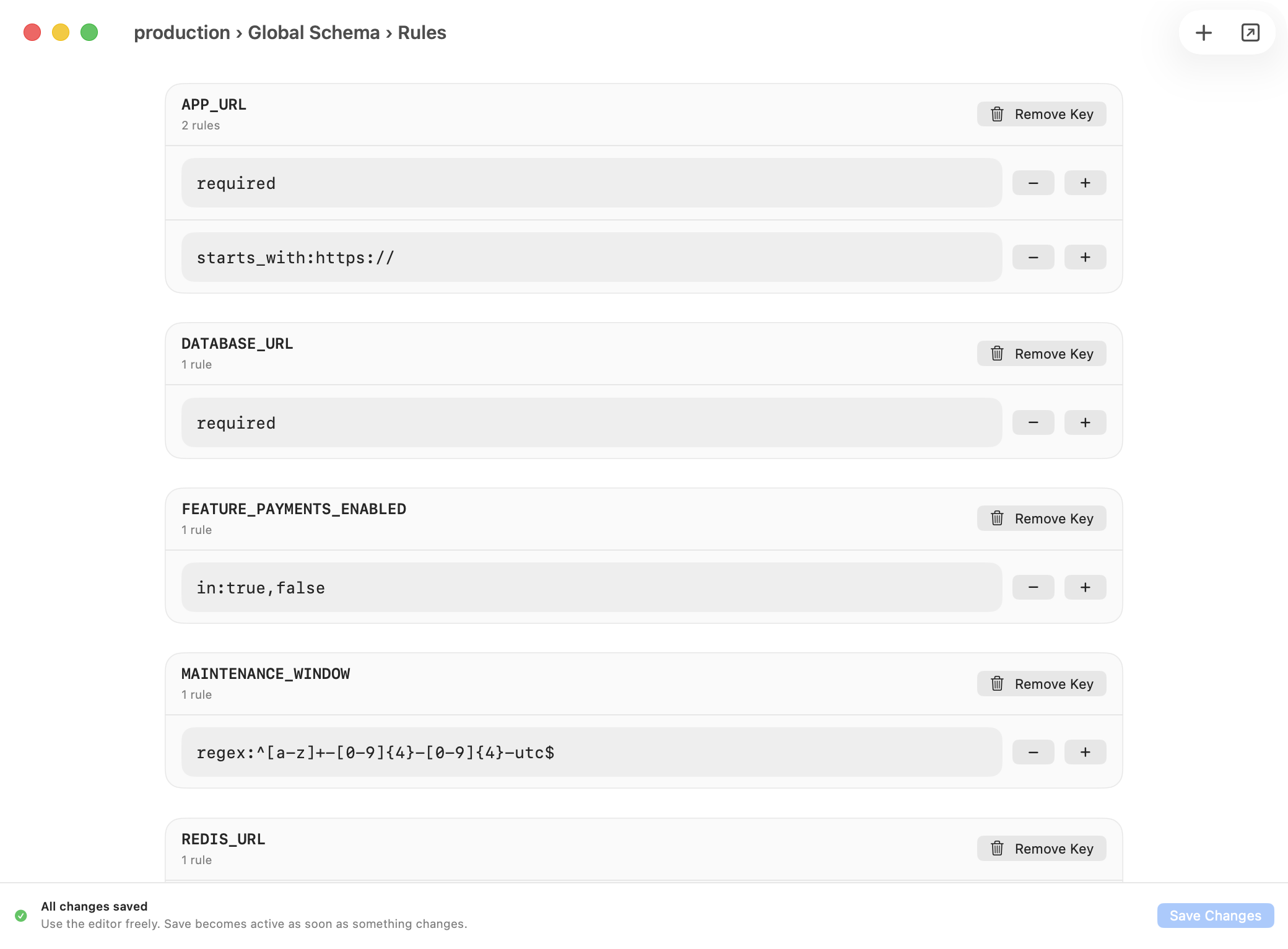
Global Rules vs Environment Overrides
Use the Global Schema for rules every environment should share. Use an Environment Override only when one environment needs different or stricter validation. For environment-specific rules:- Open the target environment.
- Open its Validation section.
- In Environment Override, choose Auto-Generate if no override exists yet, or Open in Rules Editor if it already does.
- Save the override to
.ghostable/schemas/<environment>.yaml.
Activity and History
Desktop exposes history in three places:- Organization Activity for organization-wide events.
- Project Activity for project-level changes.
- Environment Activity and variable detail history for environment-level work.
- updates a variable note,
- adds or deletes a variable comment,
- updates a variable value with a reason for change,
- approves or rejects a variable promotion request.
Continue
Link a local folder
Connect the project folder before you rely on validation and export features.
Manage variables
Return to the environment guide for the main editing workflow.