

Read the shared model
Projects and organizations behave the same across Desktop and CLI; this guide focuses on the
macOS app flow.
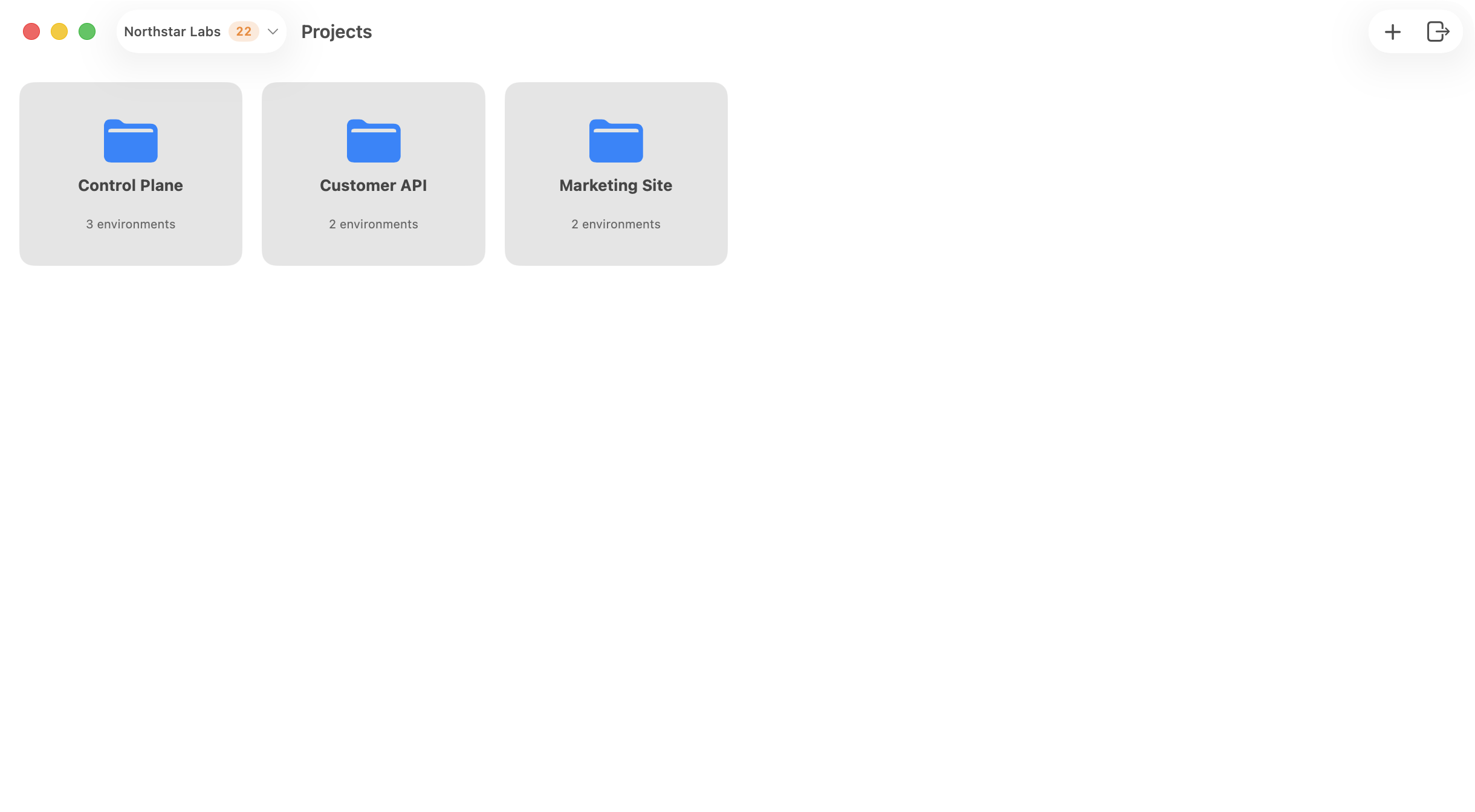
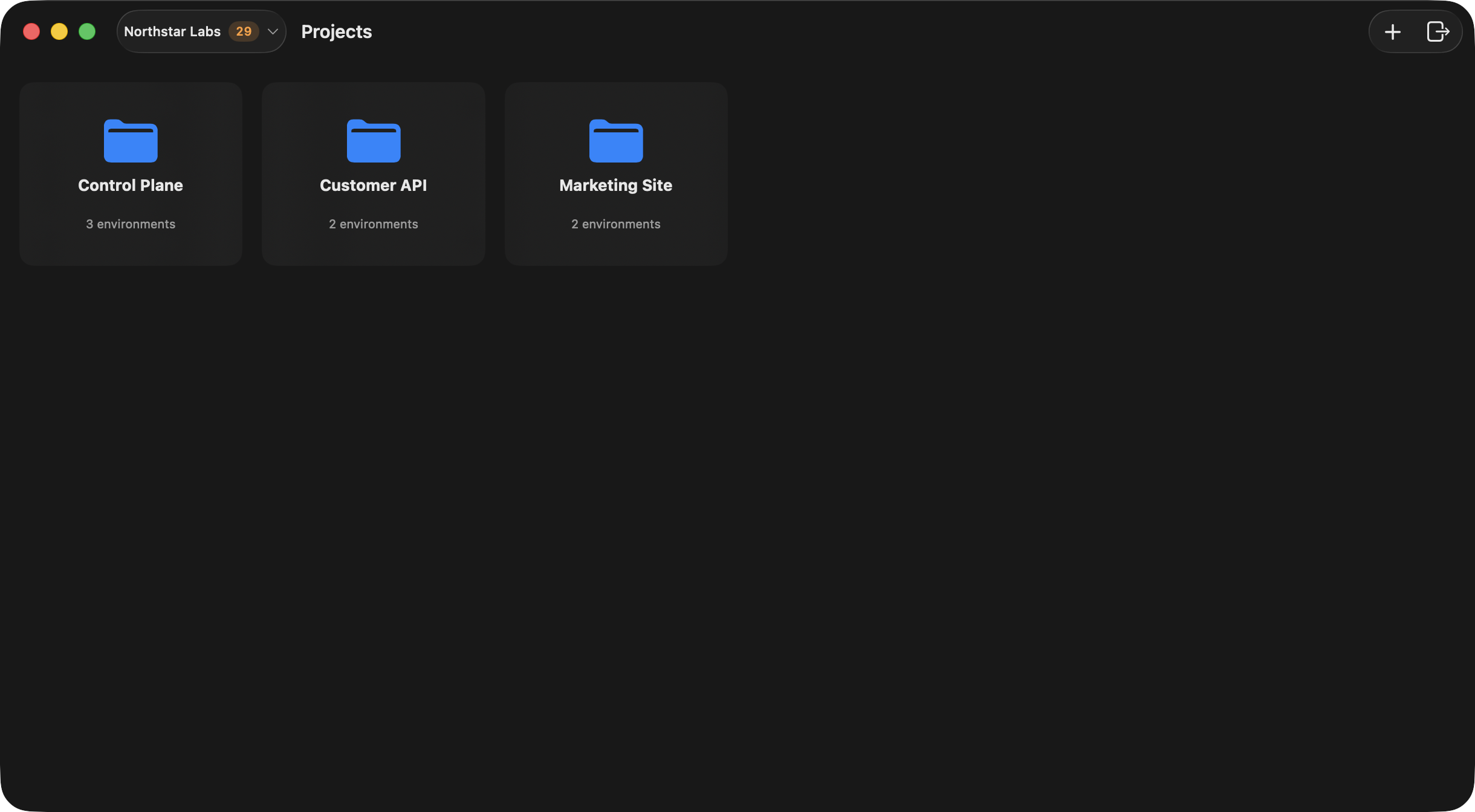
Switch Organizations
Use the organization control in the launcher toolbar to:- switch the active organization,
- review pending invites,
- open the selected organization’s management window,
- create a new organization.
Manage an Organization
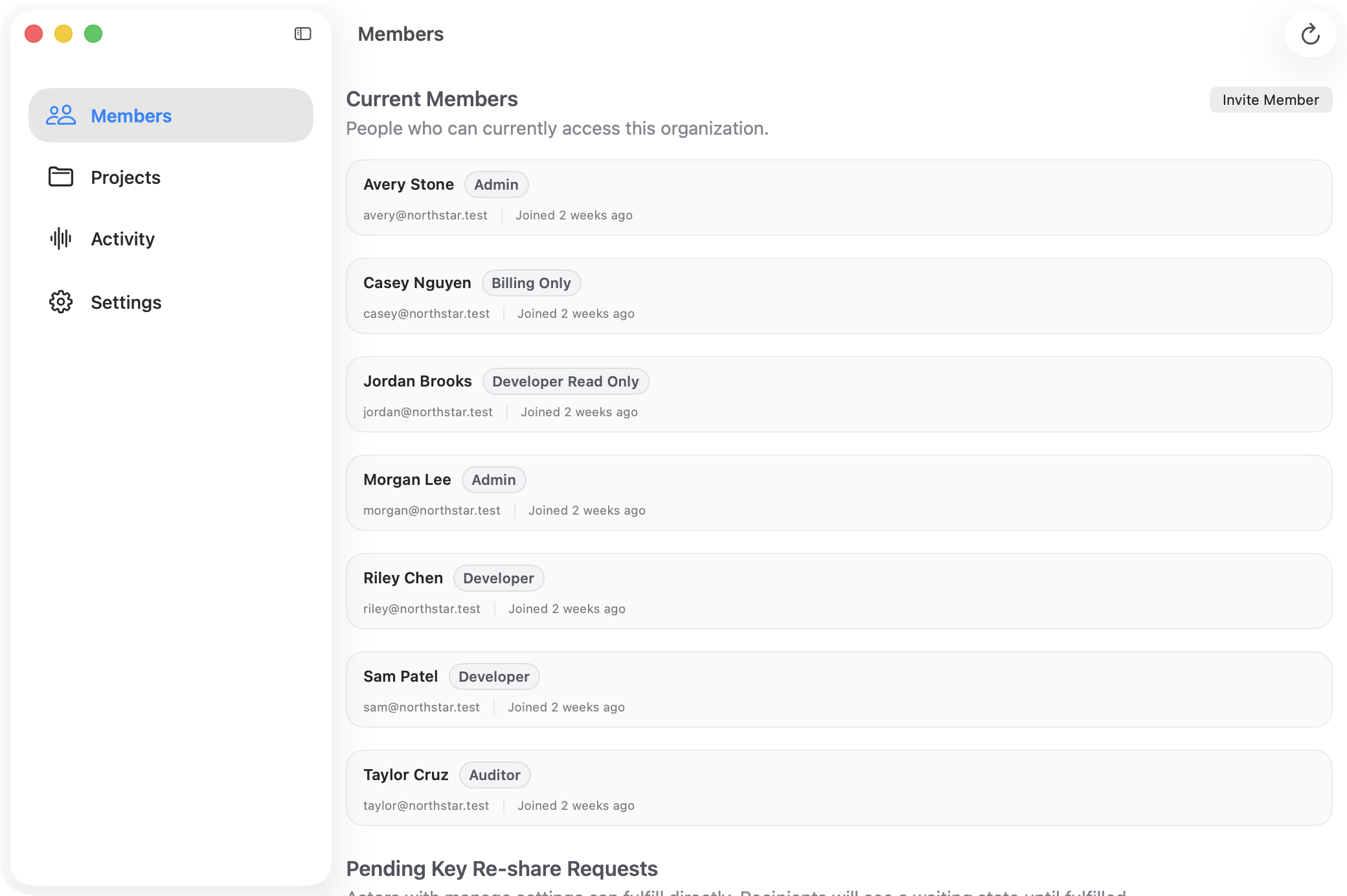
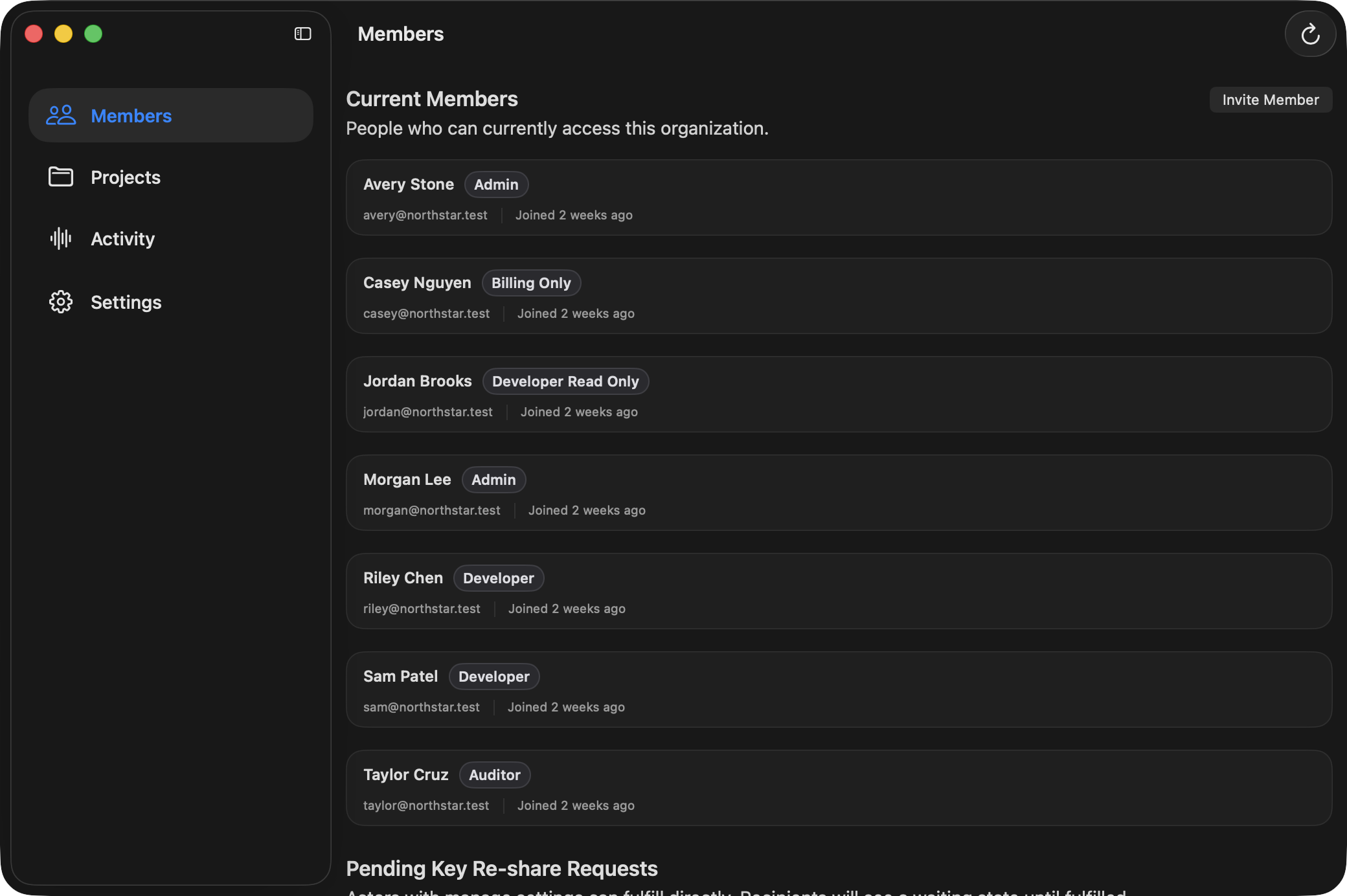
Open Manage from the launcher to work with the organization window. From there you can:- invite and review members,
- inspect pending key re-share requests,
- inspect pending variable promotion requests,
- browse projects,
- review organization activity,
- update organization settings.
Create and Open Projects
Use the+ button in the launcher or the organization Projects view to create a new project. Once a
project exists, double-click it in the launcher to open the dedicated project window.
Project and environment views can surface pending promotion indicators so reviewers can quickly see
where action is needed.
Project Settings
The Project window includes a Settings section for:- project name,
- language,
- framework,
- deployment provider,
- linked local folder,
- manifest sync.
Continue
Work with environments
Open a project and move into environment-level variable management.
Link a local folder
Connect a repo to unlock validation, manifest sync, and export workflows.