

Need the shared object model?
Read the platform-level model if you want the shared meaning of organizations, projects, and
environments.
Main Windows
Sign-In Window
Use the browser-based login flow, enable Touch ID when available, and resume an existing local session.Project Launcher
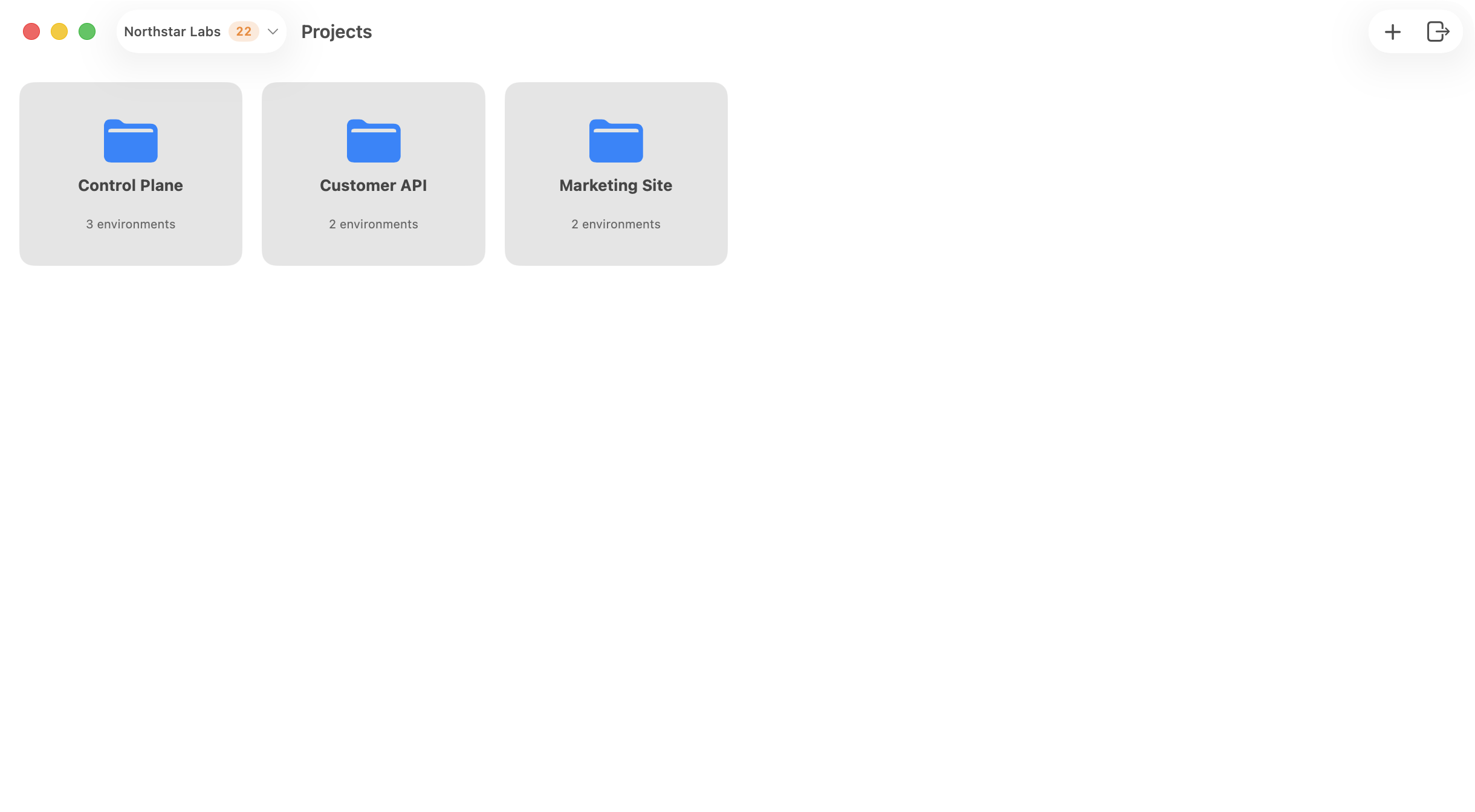
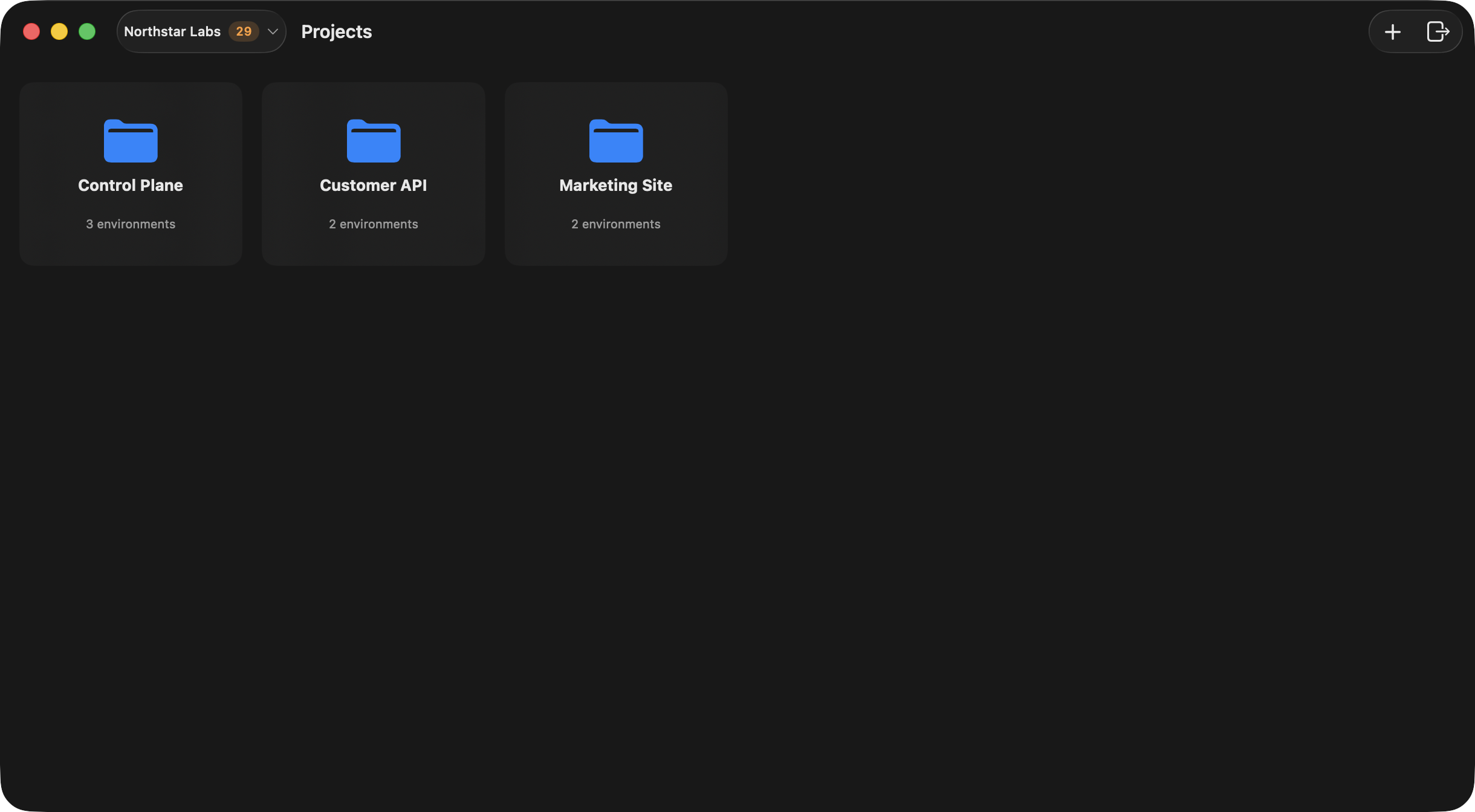
The launcher is the main landing area after sign-in. It lets you:- switch organizations from the toolbar,
- review inbox notifications for new variable comments,
- create an organization,
- create a project,
- open an organization manager window,
- sign out.
Organization Window
The organization manager is split into sections for:- Members
- Projects
- Activity
- Settings
Project Window
Each project opens into a dedicated window with sections for:- Environments
- Activity
- Validation
- Settings
Environment Window
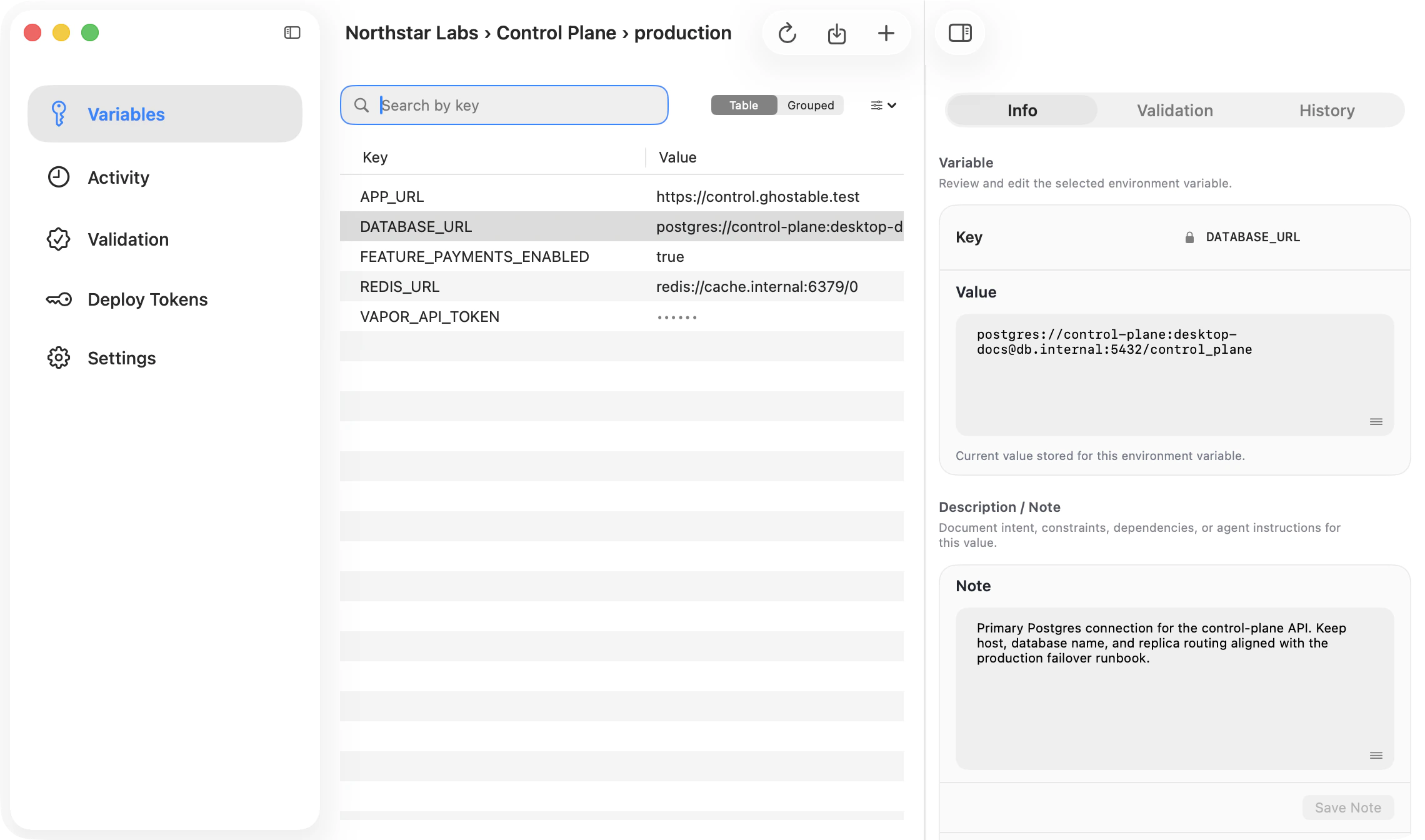
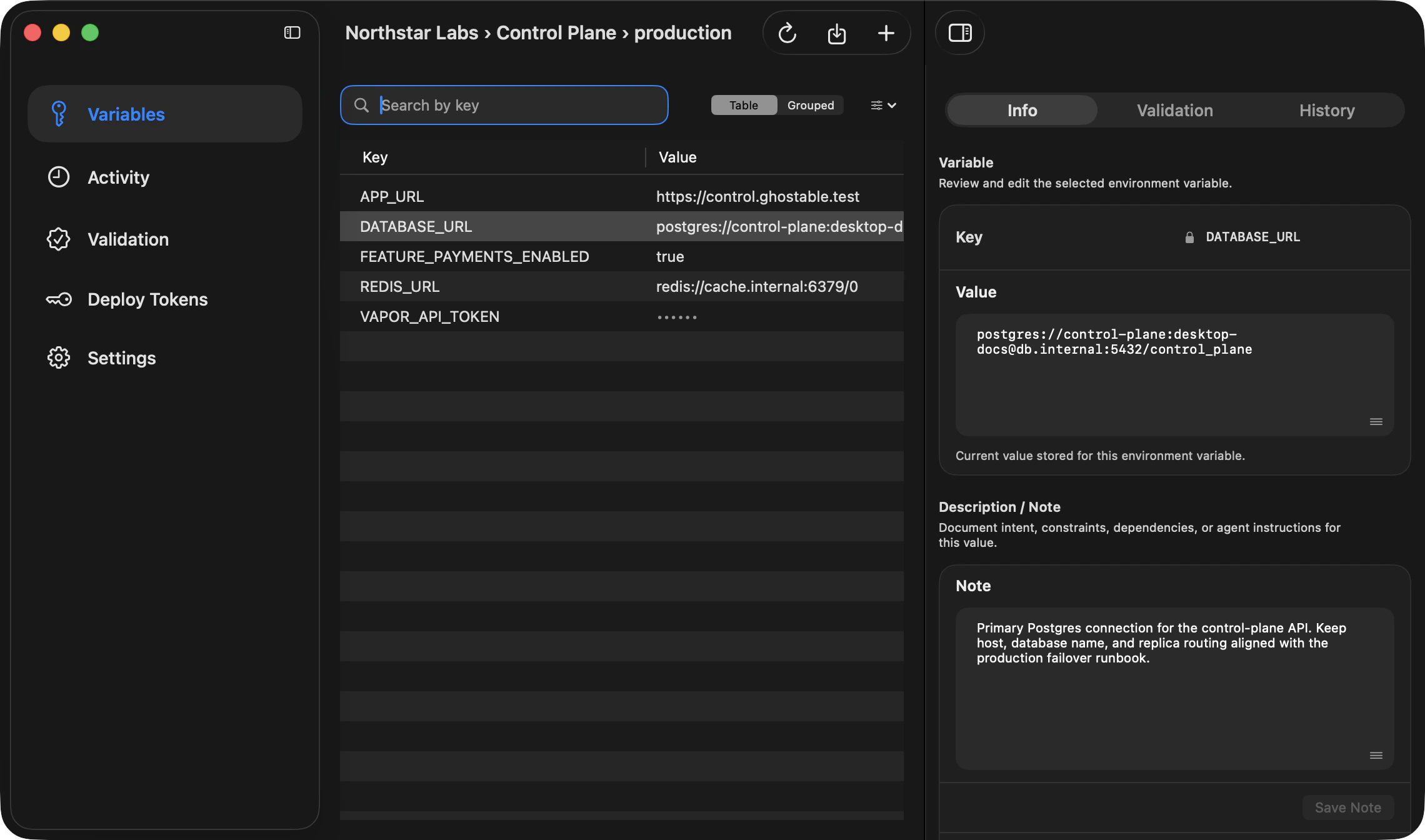
Each environment window uses a sidebar, content column, and collapsible detail column. The main sections are:- Variables
- Activity
- Validation
- Deploy Tokens
- Settings
App Settings
The global Settings window includes account, appearance, notifications, general preferences, and about information.Continue
Manage orgs and projects
Learn the day-to-day flow for switching organizations and opening projects.
Manage environments
Learn where variables, history, validation, and deploy tokens live.