

Need the shared security model?
Review how Ghostable handles trusted devices and local key material across clients.
Requirements
- macOS 26.2 or later for the current desktop build.
- A Ghostable account with access to at least one organization.
Install the App
Download the latest Ghostable desktop build from ghostable.dev/desktop/download, then move it intoApplications before launching it. That URL always redirects to the current stable desktop release.
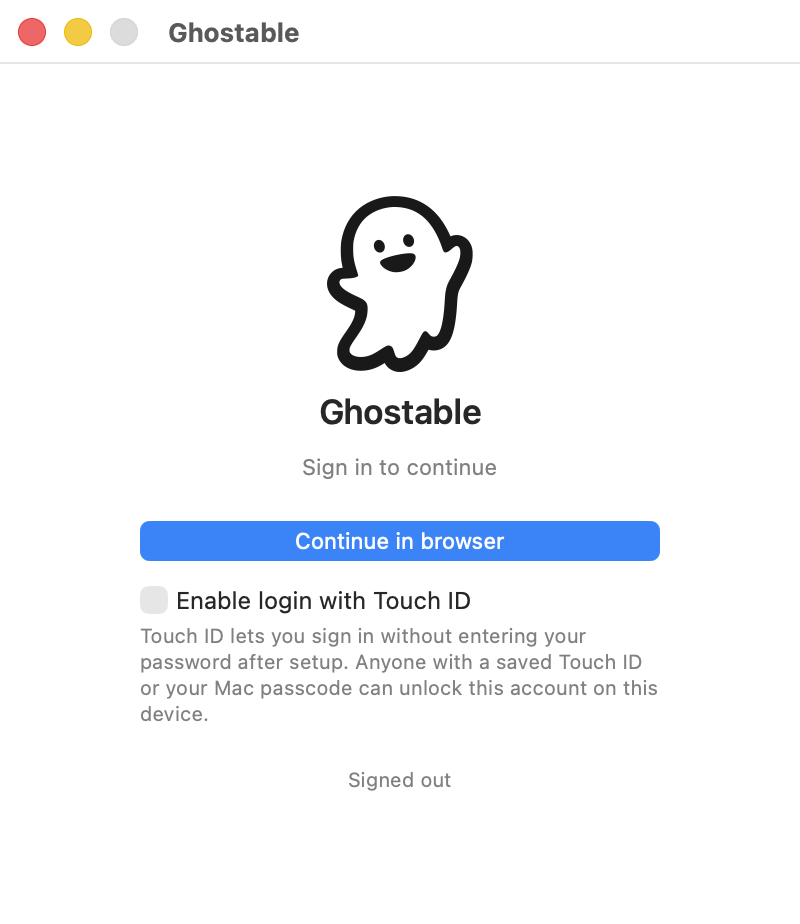
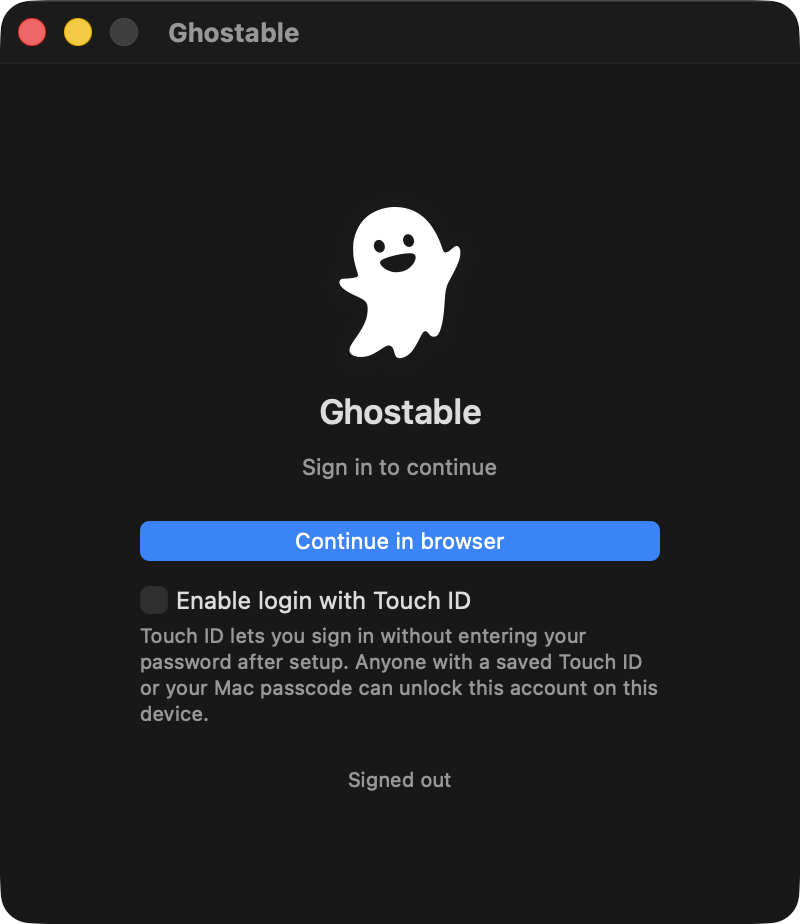
The first launch opens the sign-in window.
Sign In
Click Continue in browser in the desktop app. The app opens your default browser so you can finish authentication with Ghostable or your SSO provider. After the browser flow completes, the desktop app resumes the session automatically.Optional: Touch ID
If Touch ID is available on your Mac, the sign-in window offers Enable login with Touch ID. Use it if you want the app to unlock future sessions without entering credentials again.Anyone who can unlock your Mac with Touch ID or the device passcode can unlock that local
Ghostable session too. Treat it as a convenience feature for a trusted workstation.
What Happens Next
After sign-in, Ghostable checks whether this Mac has already been linked as a trusted device. If it has not, the app opens the device-link flow immediately.Continue
Link your device
Register the Mac before you try to read or change encrypted environments.
Tour the interface
Learn where projects, environments, and app settings live after sign-in.